Help & Support
This page covers every extension: ChatGPT, Claude, Gemini, Grok and AI Chat Exporter. They share the same buttons, formats and shortcuts. Install an exporter extension, export your first chat, learn the shortcuts and fix common problems.
Install
- Open the Chrome Web Store listing for your extension (below) and click Add to Chrome, then confirm.
- Open the matching AI chat site and open a conversation.
- Reload the chat tab if it was already open. Chrome only adds extensions to pages that load after install.
You should now see SELECT and EXPORT buttons in the bottom-right corner of the page.
Works on chatgpt.com
Works on claude.ai
Works on gemini.google.com
Works on grok.com
Works on every supported AI chat site
How to use it
- EXPORT: exports straight away using your last-used format. Use the small arrow beside it to pick another format or to copy to the clipboard.
- SELECT: opens the side panel. Tick the messages you want, Shift+click to select a range, or use the presets All, Questions, Answers, None and Invert. Then pick a format and export.
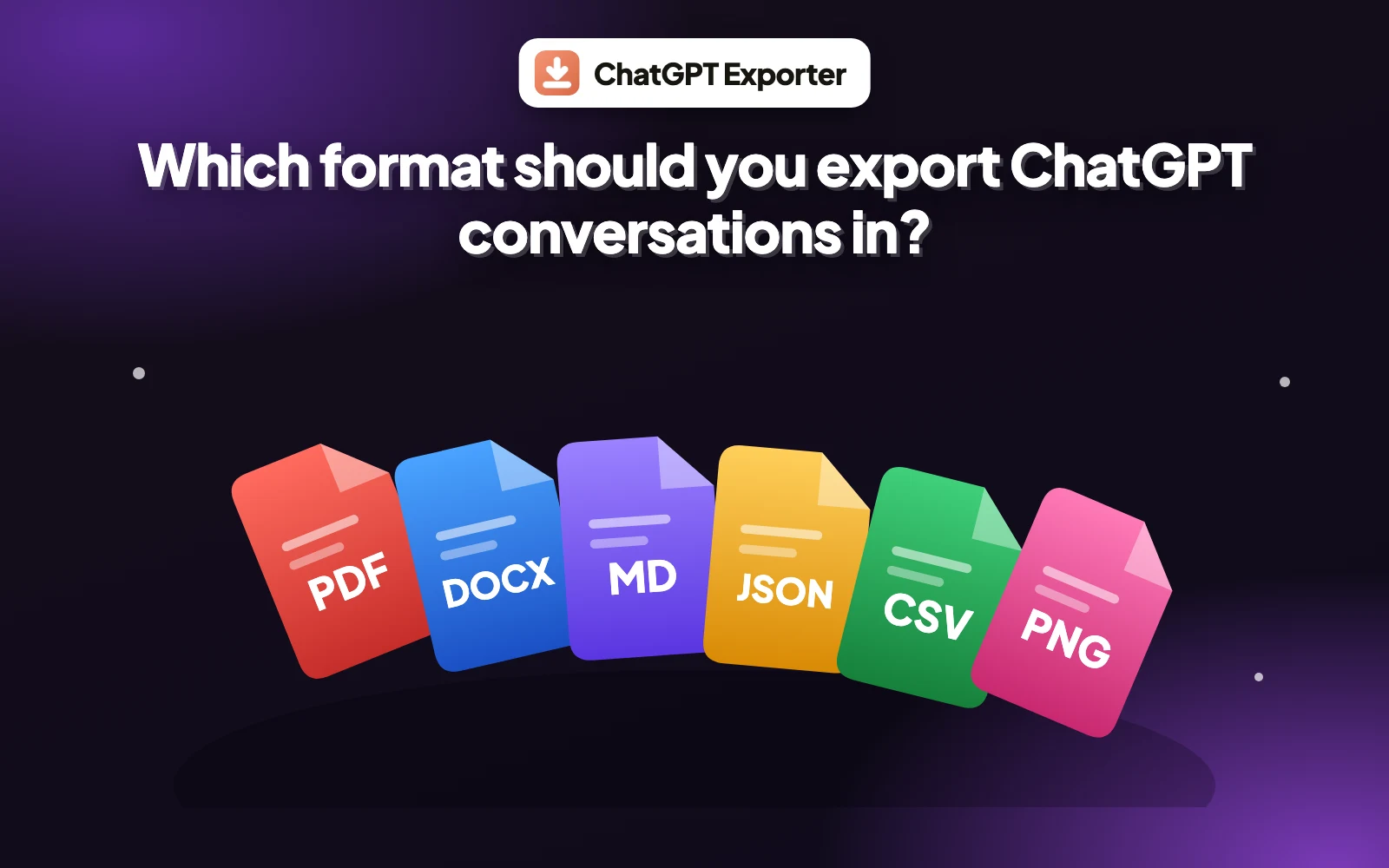
- Copy icon: copies the selection as Markdown, text, JSON, CSV or rich text. Rich text pastes into Google Docs, Word or Notion with formatting intact.
- Box icon: bulk-export many chats into one ZIP.
- Gear icon: opens settings, including the file-name template, download sub-folder and per-format options.
- Right-click menu: right-click on the page and choose Export this chat.
Keyboard shortcuts
| Shortcut | What it does |
|---|---|
| Alt+Shift+S | Open the Select Messages side panel |
| Alt+Shift+E | Quick export with your last-used format |
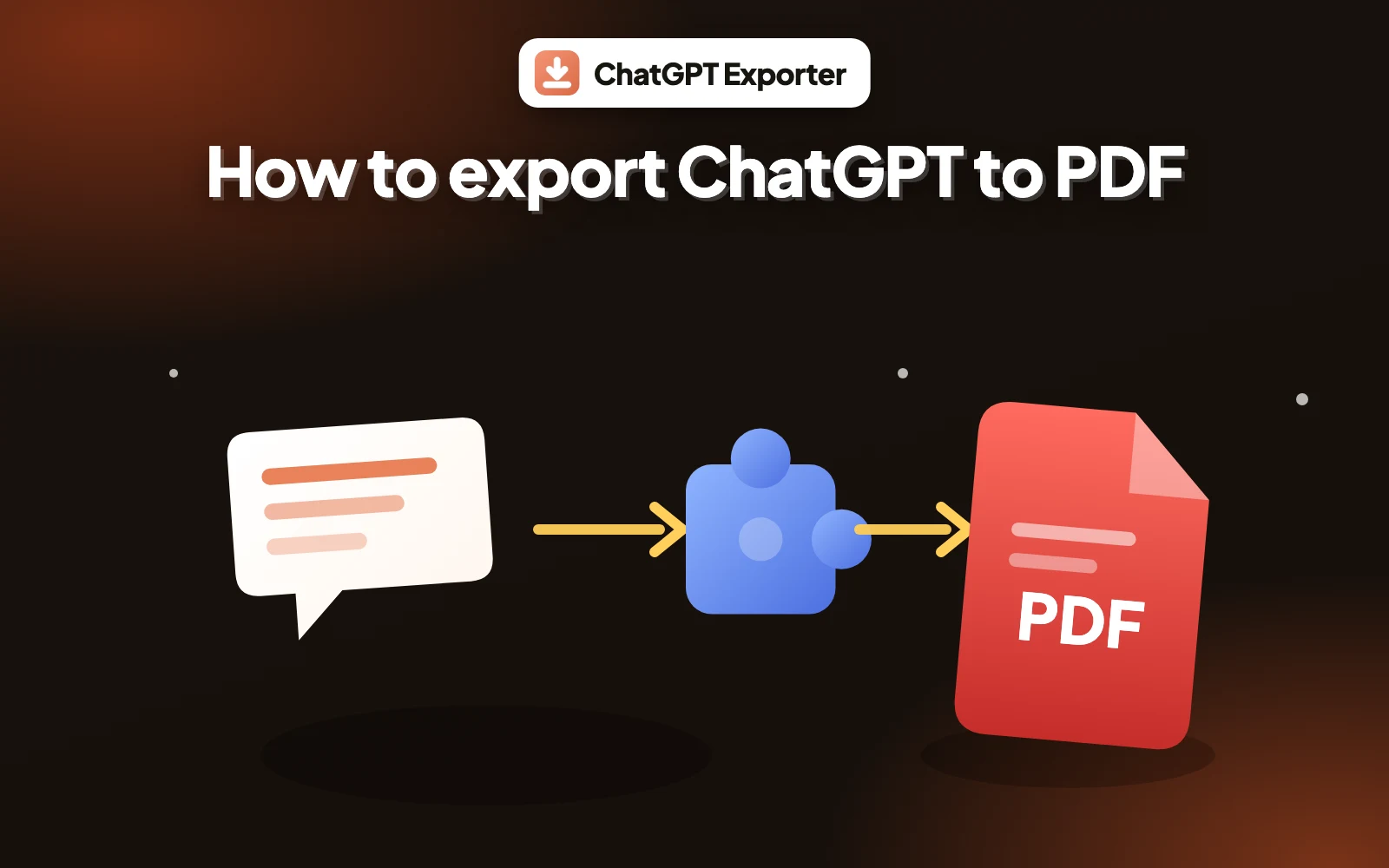
| Alt+Shift+P | Export as PDF |
You can rebind these at chrome://extensions/shortcuts.
Troubleshooting
I don't see the SELECT and EXPORT buttons
Reload the chat tab after installing. Make sure the extension is enabled at chrome://extensions and that you are on a conversation page of the site it supports.
Clicking PDF opens a print window
That is expected. PDF export uses Chrome's print dialog. Choose Save as PDF as the destination and save. This keeps the process fully offline.
Equations look odd in Word
In .docx files, maths is stored as LaTeX text rather than native Word equations. For typeset equations, export to PDF instead.
Export fails or content is missing
AI chat sites change their pages from time to time, and the extension may need an update to keep up. The extension first reads the conversation from the site's page data and falls back to reading the page if that fails. Update the extension from chrome://extensions, reload the chat and try again. If it still fails, contact us with the extension name and chat site.
My download went to the wrong place
Open the settings (gear icon) to change the file-name template and download sub-folder. The base download location is controlled by Chrome's own download settings.
Requirements
The extensions work in desktop Google Chrome on their own sites (chatgpt.com, claude.ai, gemini.google.com, grok.com), and you need to be signed in to open your own conversations. They are not available for Firefox, Safari or the mobile apps. On a phone, use the share sheet to save a page as a PDF, as described in how to save a ChatGPT conversation as a PDF.
Free plan and paid plans
Each extension has a Free plan with a monthly quota of exports in all formats, plus Month, Year and one-time Lifetime plans for unlimited conversions and priority support. AI Chat Exporter is a separate extension that works on all of these sites, with its own plan. After you buy a plan, connect the extension to your account or enter an activation code under Connect with an activation code in its Settings. See pricing for each extension: ChatGPT Exporter, Claude Exporter, Gemini Exporter, Grok Exporter, AI Chat Exporter.