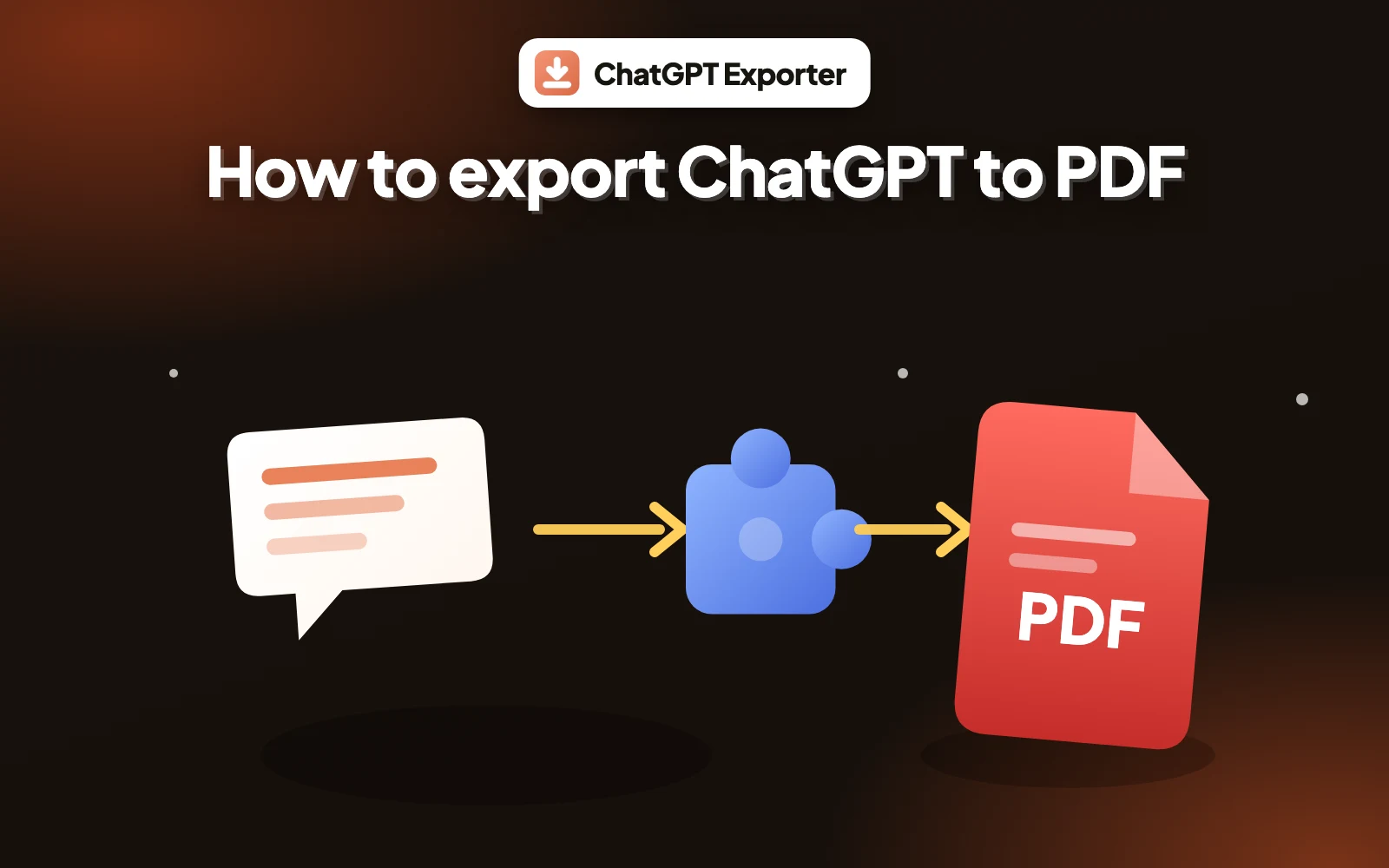
Turn a ChatGPT conversation into a tidy, shareable PDF with the page setup you choose. Free to start, and your chat never leaves your browser.
1. ChatGPT to PDF that looks designed, not screenshotted
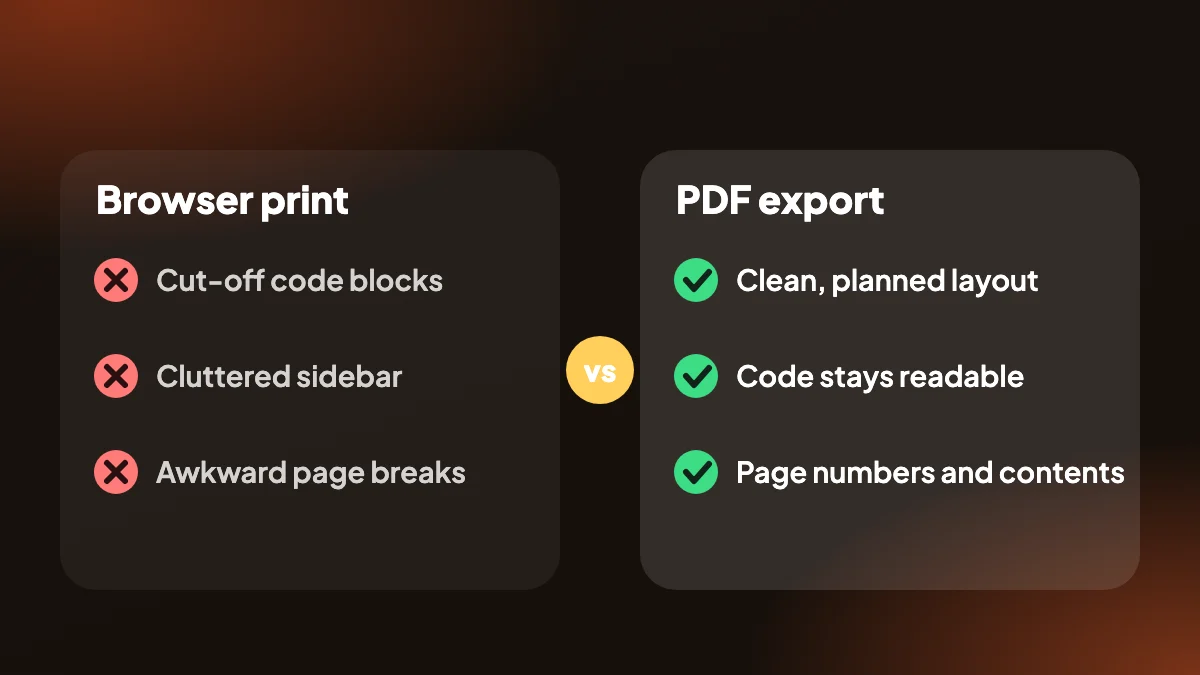
Printing a ChatGPT page from the browser gives you cut-off code blocks, a cluttered sidebar and awkward page breaks. ChatGPT Exporter builds the PDF from the conversation itself, so you get a clean document with the messages laid out the way you set them up.
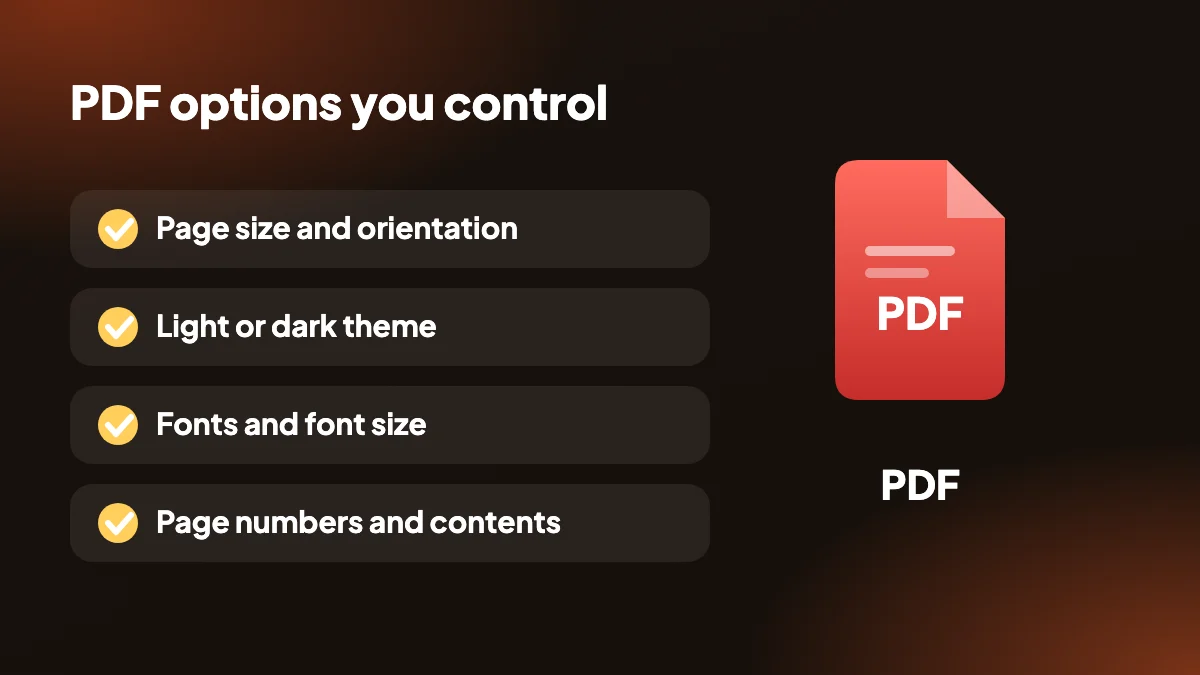
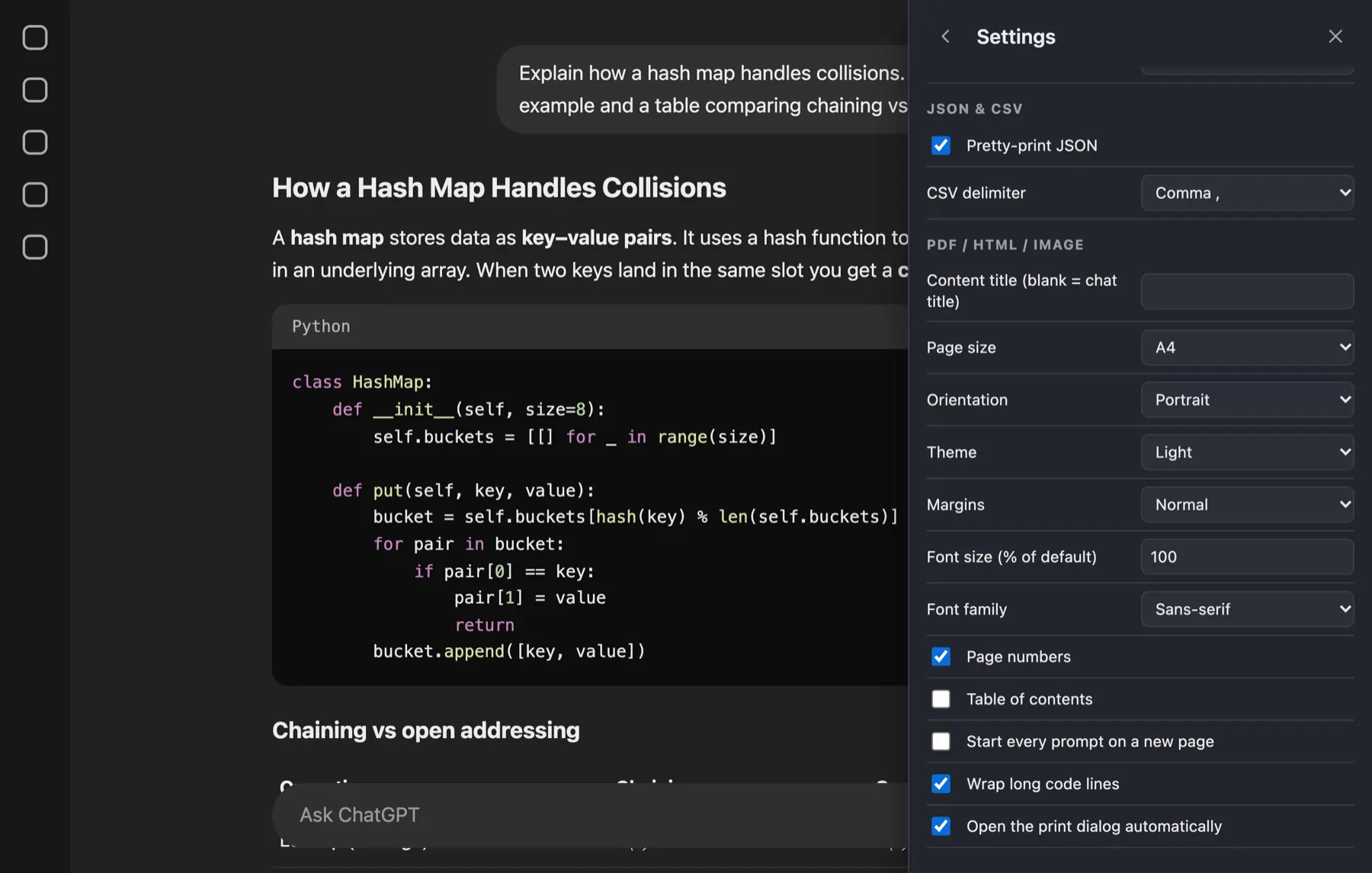
You decide the page size, orientation and margins, pick a light or dark theme, choose the fonts, and switch on page numbers or a table of contents. Long answers stay readable, and maths written in LaTeX is typeset with KaTeX.
2. PDF options you control
- Page size and orientation: Set the paper size, switch between portrait and landscape, and adjust the margins.
- Light or dark theme: Print on white for documents, or keep a dark theme for on-screen reading.
- Fonts: Choose the font family and size so the PDF matches the document you are building.
- Page numbers and contents: Add page numbers and a table of contents to long conversations so they are easy to navigate.
- A page break per prompt: Start each of your prompts on a fresh page, handy for study notes and reviews.
- KaTeX math: Equations are rendered properly instead of showing raw LaTeX.
3. How to export ChatGPT to PDF, step by step
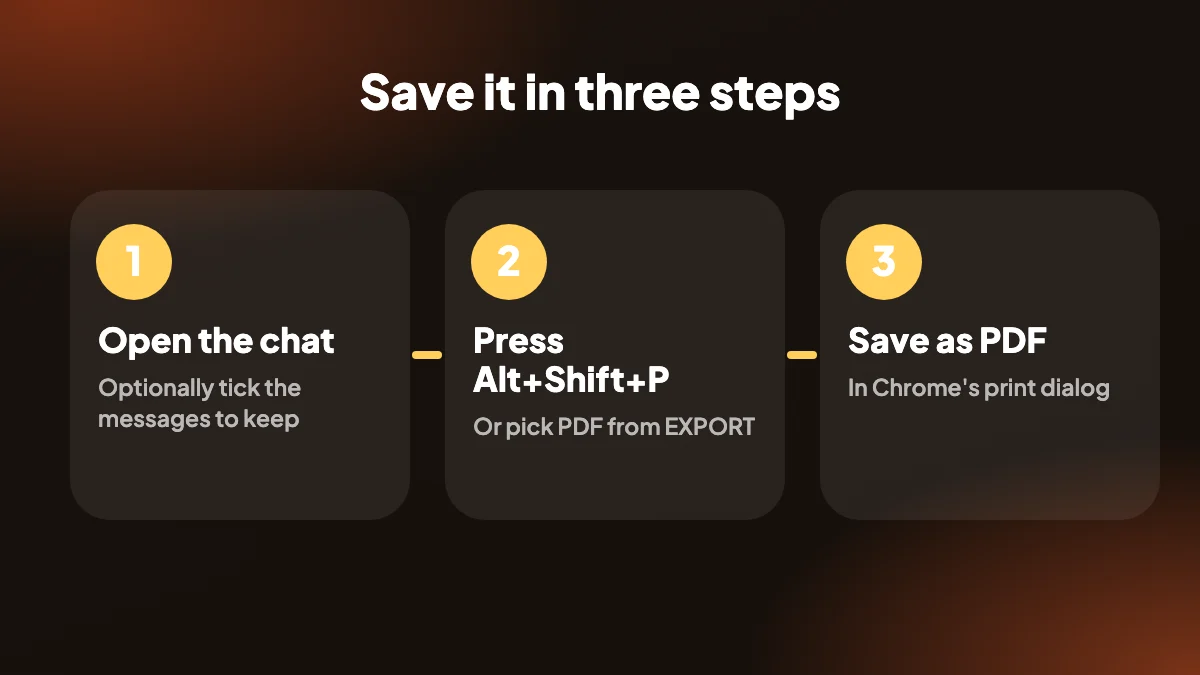
Open the chat
Go to the conversation on chatgpt.com. Optionally click SELECT to choose which messages go in the PDF.
Press Alt+Shift+P
Or pick PDF from the EXPORT menu. The extension opens a preview page with your layout settings applied.
Save as PDF
In Chrome's print dialog, set the destination to "Save as PDF" and save the file.
4. How the PDF is saved
PDF export goes through Chrome's print dialog, so you finish by choosing "Save as PDF". That keeps everything offline and means no extra browser permission is needed. It is one extra click compared with the other formats.
5. Why export ChatGPT conversations to PDF?
A PDF is the safest way to keep a ChatGPT answer. It looks the same on every device, it cannot be edited by accident, and almost anyone can open it. That makes it the right choice for sending research to a colleague, attaching an explanation to a ticket, filing meeting prep, or keeping study notes you can read offline.
ChatGPT conversations also disappear from view. Chats get buried in the sidebar, deleted by mistake or lost when you change accounts. When you export a ChatGPT conversation to PDF you keep a permanent copy that does not depend on your chat history. If you need every chat rather than one, see how to export all your ChatGPT conversations.
6. Save a ChatGPT conversation as a PDF, not a screenshot
Screenshots of long chats are blurry, split across several images and impossible to search. A real PDF keeps the text selectable and searchable, so you can find a command, copy a paragraph or follow a link. Code blocks keep their formatting, tables stay aligned and images that ChatGPT generated are embedded in the file. Prefer a walkthrough? The print and phone methods cover browser printing, iPhone and Android.
The Select panel lets you download only the part of the chat you need. Tick the answers you want, use the Answers preset to drop your own prompts, or Shift+click to choose a range. You can also include ChatGPT's reasoning, numbered web-search sources and Canvas documents when they matter. If you want an image instead of a document, try ChatGPT to PNG, or ChatGPT to HTML for one self-contained web page.
7. Download a ChatGPT conversation as a PDF in seconds
Install the extension, reload ChatGPT once, then press Alt+Shift+P on any chat. Your last settings are remembered, so after the first time the whole job is a shortcut and one click in the print dialog.
The free plan includes 5 full exports and 7 single exports a month in every format, so you can try the ChatGPT PDF download on real work before deciding on anything. Prefer an editable file? Try ChatGPT to Word, compare every option in the export format guide, or read about the free ChatGPT export Chrome extension.
8. Settings we would start with
You can change every PDF setting, but most people only need to decide a few. These are the defaults we reach for, and why.
- Light theme for anything printed or emailed. It is easier to read on paper and uses less ink.
- Portrait pages with normal margins. A familiar layout that fits most readers.
- Page numbers on, always. The first time someone says "see page four", you will be glad.
- A table of contents for long chats. It turns a forty-message conversation into something you can navigate.
- A page break per prompt for study notes. Each question starts on its own page, with room to write.
- Wrap code if people will read it, do not if they will copy it. Wrapping keeps long lines visible, while unwrapped code is easier to paste back.
9. Sharing a PDF without oversharing
A PDF is a complete record of whatever you selected, so check it before it leaves your computer. Look for names, email addresses and company details in your prompts, and for anything you pasted in for context. If part of the chat is private, use SELECT to leave it out, rather than trying to cover it up afterwards.
It also pays to keep the original. Name the file with the date and topic, so that "ChatGPT" followed by a number does not become the title of a document that outlives the conversation.
Frequently asked questions
How do I export a ChatGPT conversation to PDF?
Open the chat on chatgpt.com, press Alt+Shift+P or choose PDF from the EXPORT menu, then pick "Save as PDF" in Chrome's print dialog and save the file.
Is there a free ChatGPT to PDF converter?
Yes. ChatGPT Exporter has a Free plan with 5 full exports and 7 single exports a month, including PDF. See pricing for the paid plans that remove the monthly limit.
Can I export just a few messages to PDF?
Yes. Use SELECT to tick only the messages you want, or Shift+click to choose a range, then export as PDF.
Does the PDF include code blocks and tables?
Yes. Code blocks, tables, lists, links and images are included, and you can choose whether code wraps.
Why does a print dialog open?
PDF export uses Chrome's own print dialog. Choose "Save as PDF" as the destination to create the file locally.
Is my conversation uploaded when I save ChatGPT as a PDF?
No. The PDF is built in your browser and saved to your computer. Nothing is sent to our servers.
Can I save a ChatGPT PDF on my phone?
The extension is for desktop Chrome only. On a phone, open the chat in a browser and use its Share or Print option to save a page as PDF. The print and phone guide shows the iPhone method.
Can I add page numbers or a table of contents to the PDF?
Yes. Both are options in settings, along with page size, orientation, margins, theme and fonts.
What file size will my ChatGPT PDF be?
Text-only chats are small. Conversations with many images are larger, since images are embedded in the file.
Can I use ChatGPT to PDF on Firefox or Safari?
The extension is for desktop Chrome. In other browsers use the print dialog, covered in our guide to saving a conversation as a PDF without an extension.