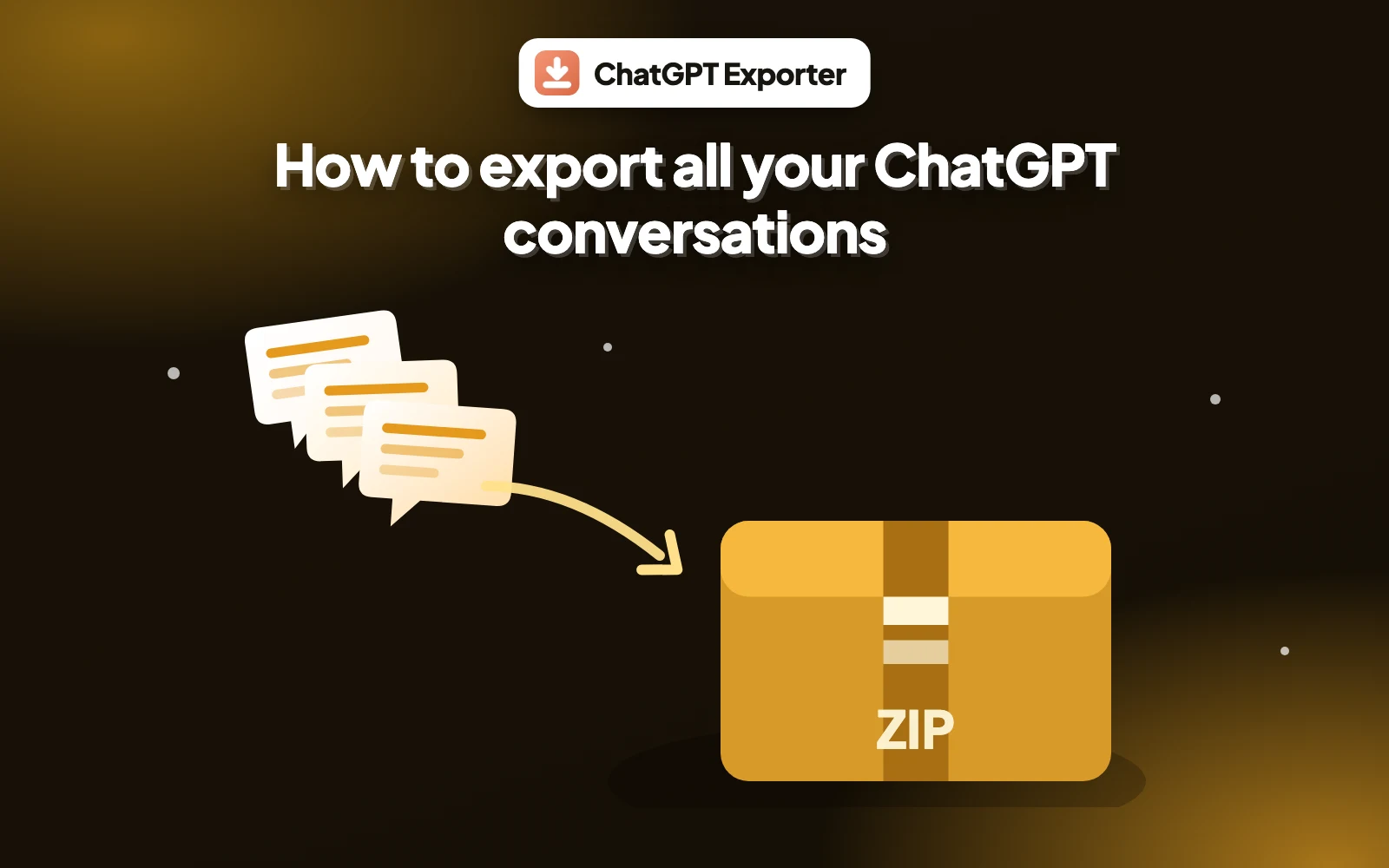
Select many chats and download them together as one ZIP, instead of saving them one at a time.
1. Back up your ChatGPT chat history in one ZIP
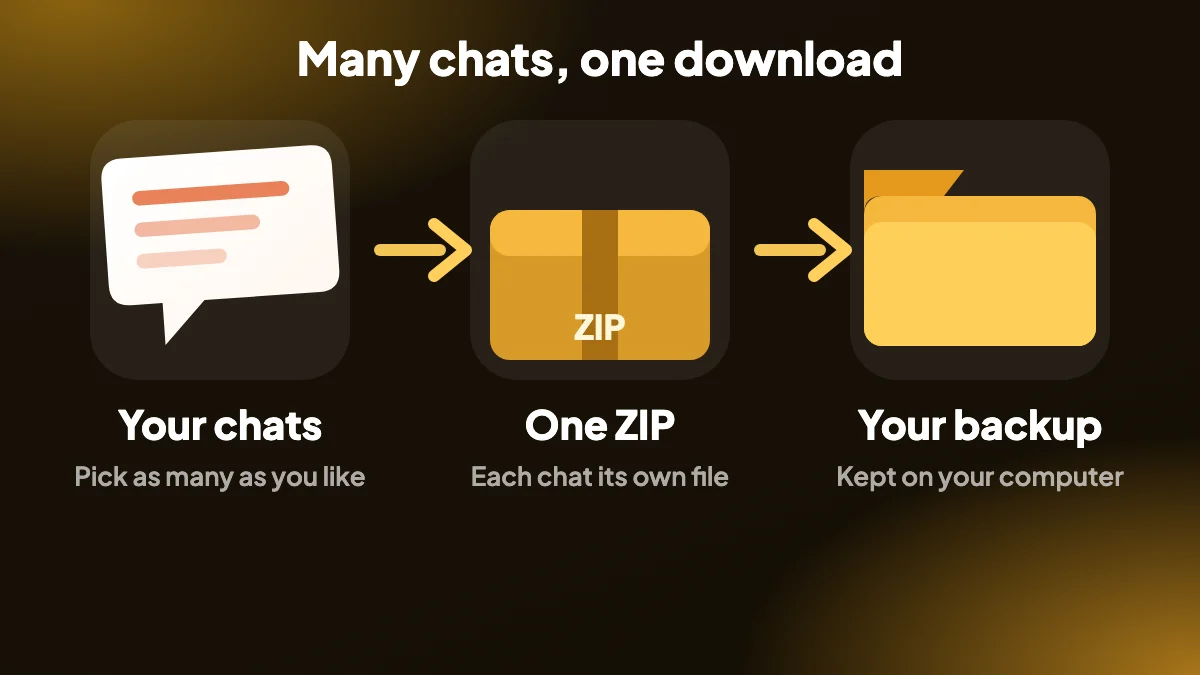
Exporting a conversation at a time is fine for one-offs, but not for a backlog of months of chats. Bulk export lets you choose many conversations and downloads them together in a single ZIP.
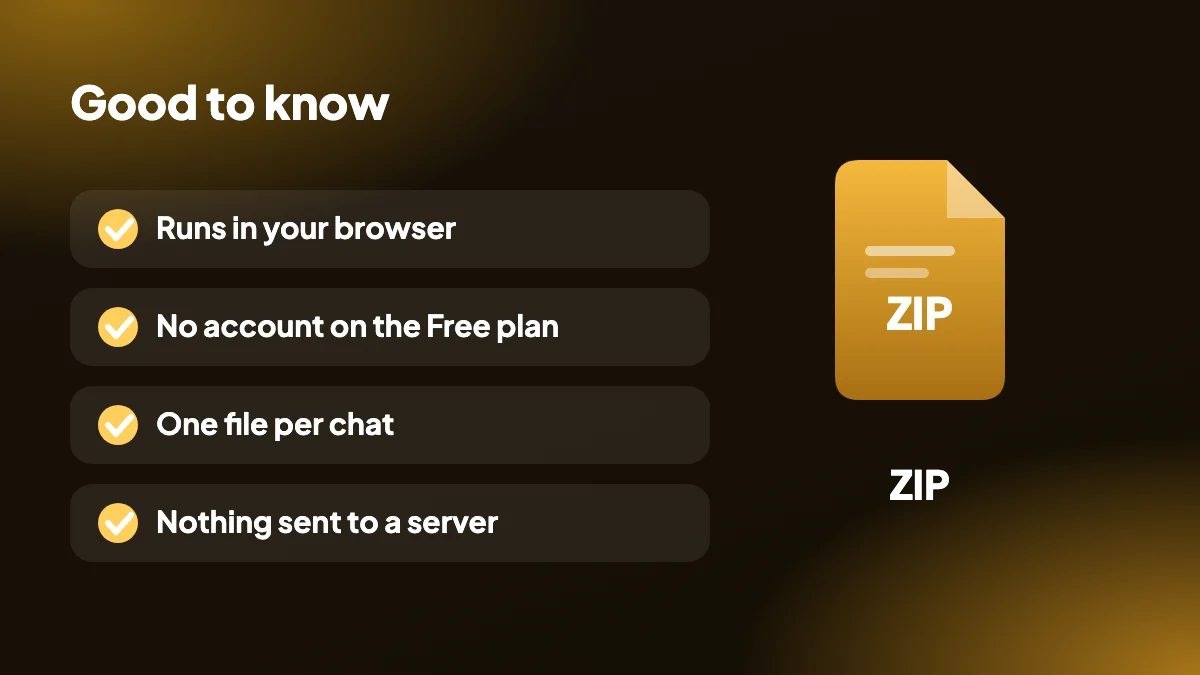
Everything happens in your browser, using the ChatGPT session you are already signed in to. No account with us, and nothing is sent to a server.
2. Bulk export, simply
- Many chats, one ZIP: Pick the conversations you want and get a single archive.
- Files in one archive: Every conversation is saved as its own file, and all of them arrive together in the ZIP.
- Tidy file names: Your file-name template and download sub-folder keep the archive organised.
- Private by design: No server, no account and no analytics, so your history stays on your computer.
3. How to export all ChatGPT conversations, step by step
Open ChatGPT
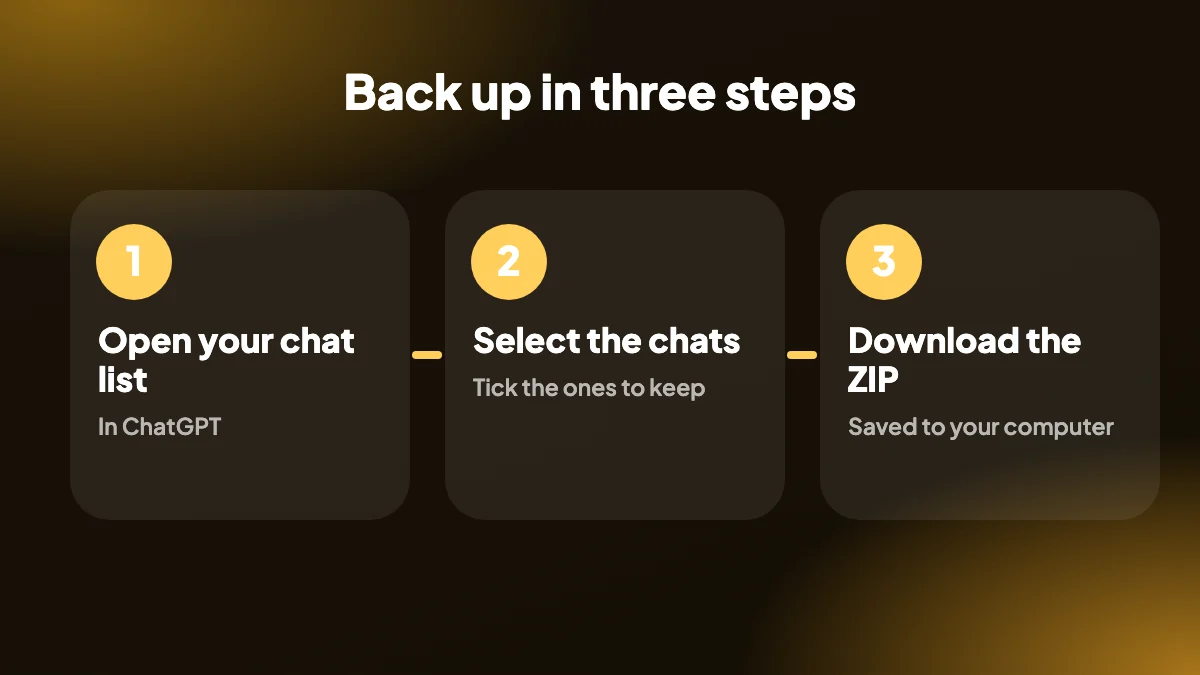
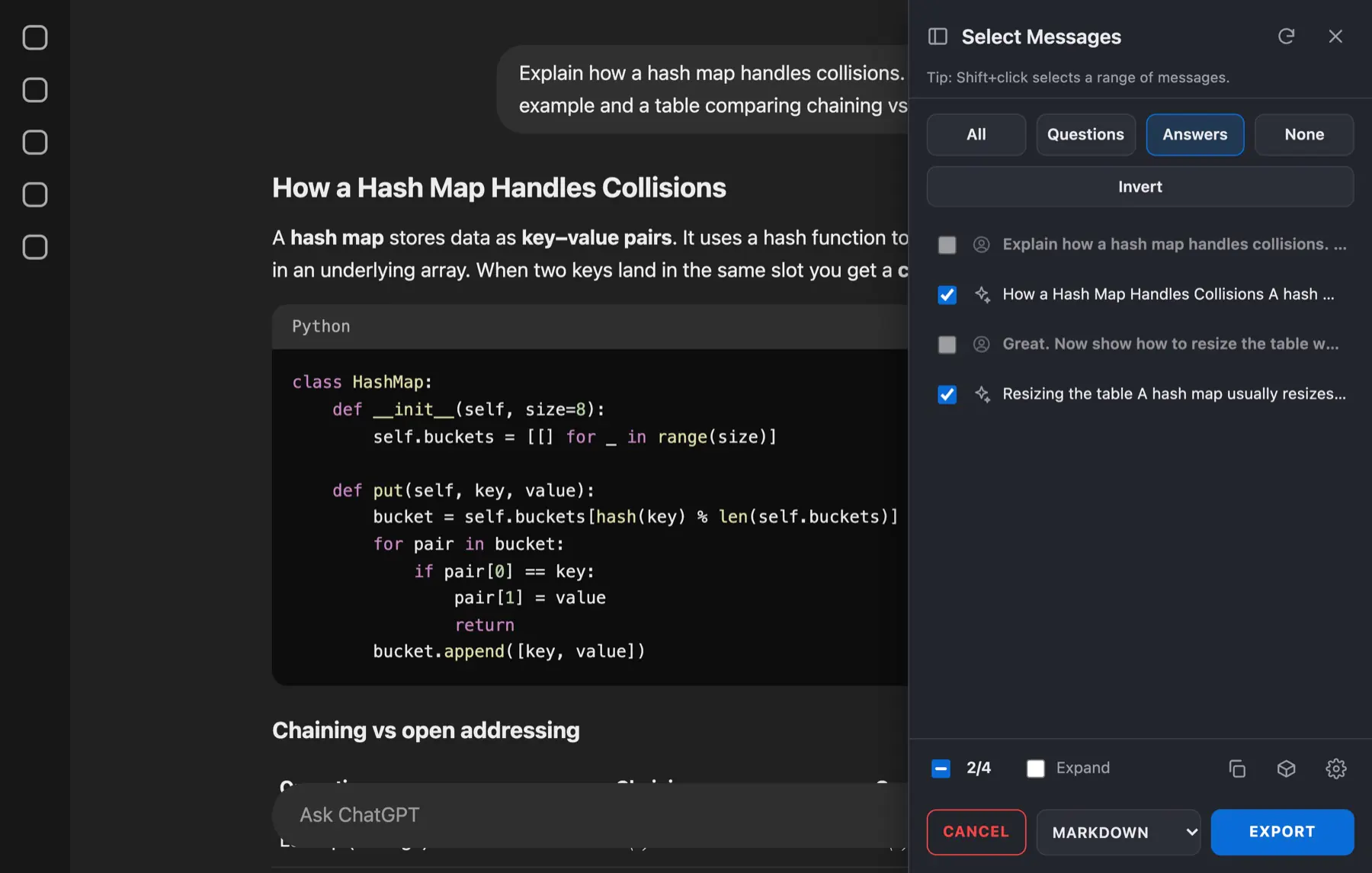
Go to chatgpt.com and click the box icon (bulk export) next to the SELECT and EXPORT buttons.
Pick your chats
Choose the conversations to include in the export.
Download the ZIP
The extension gathers the chats and downloads them together as a single ZIP file.
4. Why back up your ChatGPT chat history?
Months of ChatGPT chats can hold prompts you refined, research you paid for in time and answers you will want again. Chats get buried in the sidebar, deleted by accident or lost when an account changes. A ChatGPT backup gives you a copy that does not depend on your chat history.
Saving a conversation at a time works for one-offs but not for a backlog. Bulk export lets you choose many chats and download them together, so a ChatGPT chat history backup takes minutes, not an afternoon. Not sure which method to use? Compare them in how to export a ChatGPT conversation.
5. ChatGPT export all conversations: extension or official export?
ChatGPT has its own data export. You request it from Settings, then Data controls, then Export data, and a download link arrives by email. It covers your whole account in one archive, but you wait for the email and the files are not laid out for reading. The full comparison is in the ChatGPT data export guide.
The extension works the other way round. You choose the conversations, the download starts in your browser and each chat is saved as its own file inside one ZIP. Use the official export for a complete account archive, and the extension when you want specific chats now.
6. How to download all your ChatGPT chats
Open chatgpt.com, click the box icon beside the SELECT and EXPORT buttons, tick the conversations you want and download the ZIP. Your file-name template and download sub-folder keep the archive tidy, and you can run it in batches if your history is large.
Everything in ChatGPT Exporter uses the ChatGPT session you are already signed in to. There is no server, no account with us and no analytics, so your history stays on your computer. For a single styled file, export one chat as PDF or Markdown from its own page.
7. A sensible way to back up a big history
If you have hundreds of chats, picking them all at once is neither necessary nor wise. A backlog that large is mostly noise: quick questions, half-finished experiments, and a handful of conversations that are genuinely worth keeping. A little triage makes the archive far more useful.
Start with what you would hate to lose
Scan your sidebar for long project chats, anything with code that worked and conversations you refer back to. Export those first.
Work in batches
Pick a few dozen at a time. Smaller ZIPs are easier to check and easier to re-run if something goes wrong.
Name each batch by date or topic
Use the file-name template and the download sub-folder setting so you can tell the archives apart later.
Open one file from every batch
It takes a few seconds and proves the backup is readable before you rely on it.
8. Where to keep the archive
A backup that lives only on the machine it came from is a copy, not a backup. Put the ZIPs on an external drive or in a cloud folder you trust, and keep them somewhere you will find them in a year. If the chats contain client or personal information, store them encrypted or in a protected folder, since an archive is a readable record of everything you discussed.
For anything you may need to open often, extract it. For long-term storage, leave it zipped: it is smaller and the files stay together.
9. Bulk export, the official export, or both?
| Bulk export in the extension | Official data export | |
|---|---|---|
| Choose which chats | Yes | No, it covers the whole account |
| Speed | Seconds to a few minutes | Wait for an email |
| Best for | Projects, topics and recent work | A complete account backup |
| Format | A file per chat inside a ZIP | Structured data and a web page |
Many people do both: the official export every few months as a full safety net, and bulk export for the chats they actually use. The data export guide explains the official route in detail.
10. Making the archive useful, not just stored
A folder of hundreds of unlabelled files is hard to use. A few habits help. Keep a short index in a text file listing the chats that matter and why. Put project chats in their own folders. And when a conversation produced something you rely on, export it on its own as a Markdown or PDF file as well, so the important ones are easy to open without digging through a ZIP.
If you plan to search your history with scripts, JSON keeps the most detail. If you would rather scan messages in a spreadsheet, use CSV for the chats you care about.
Frequently asked questions
How do I export all my ChatGPT conversations?
Use the bulk export (box) icon in ChatGPT Exporter, choose the conversations you want and download them together as a ZIP. You can also request ChatGPT's own data export from Settings. If the email never arrives, see ChatGPT export not working.
Is this the same as ChatGPT's own data export?
No. ChatGPT's own export is requested from your account settings and arrives by email. This extension exports the chats you choose straight from your browser, with nothing sent to a server.
Can I download all ChatGPT chats at once?
You can select many chats and download them in one ZIP. If your history is very large, export in batches that suit you.
What does a ChatGPT backup contain?
Each selected conversation is saved as its own file inside the ZIP, named with your file-name template.
Can I pick the format for a bulk export?
Bulk export downloads your chats as a ZIP. For a specific layout such as a styled PDF, export that single chat from its own page.
How often should I back up my chats?
There is no fixed rule. Many people export after finishing an important project, or monthly, so valuable chats are never only in the sidebar.
Does the bulk export upload my chats?
No. It runs in your browser using the ChatGPT session you are already signed in to, and nothing is sent to our servers.
Is bulk export included in the Free plan?
The Free plan has a monthly quota for trial usage. The Month, Year and Lifetime plans (see pricing) give you unlimited conversions.
How often should I run a bulk export?
Monthly is plenty for most people. Do one before you close an account, change plans or clear your history.
Is bulk export slower for large chats?
Longer conversations take longer to gather, so exporting in smaller batches is more predictable than one huge selection.
Can I restore exported chats back into ChatGPT?
No. Exports are for reading, searching and keeping. ChatGPT has no import feature for them.