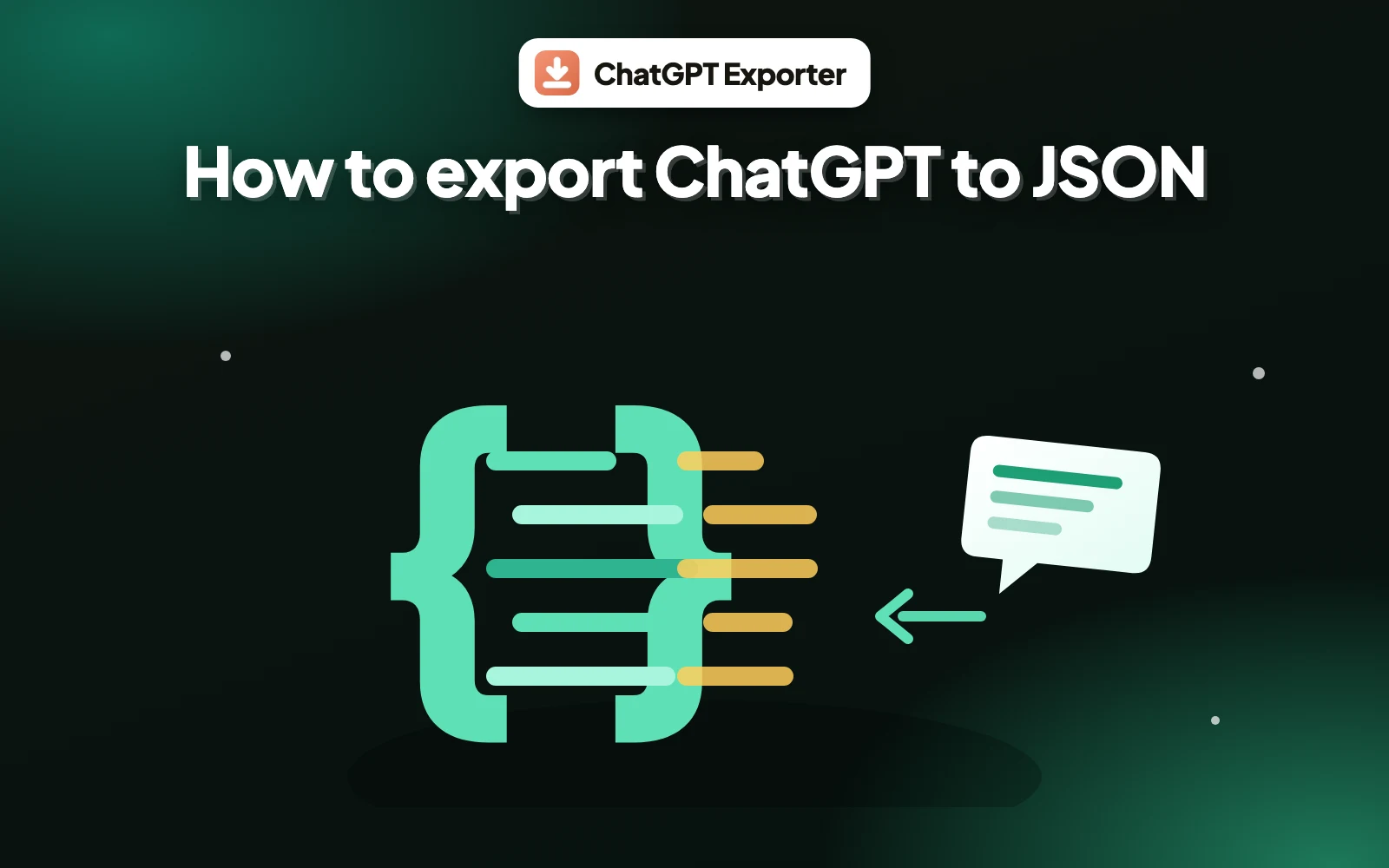
Get a ChatGPT conversation as structured data: ids, roles, timestamps, thoughts and sources, ready for scripts and analysis.
1. Structured data for people who want to process chats
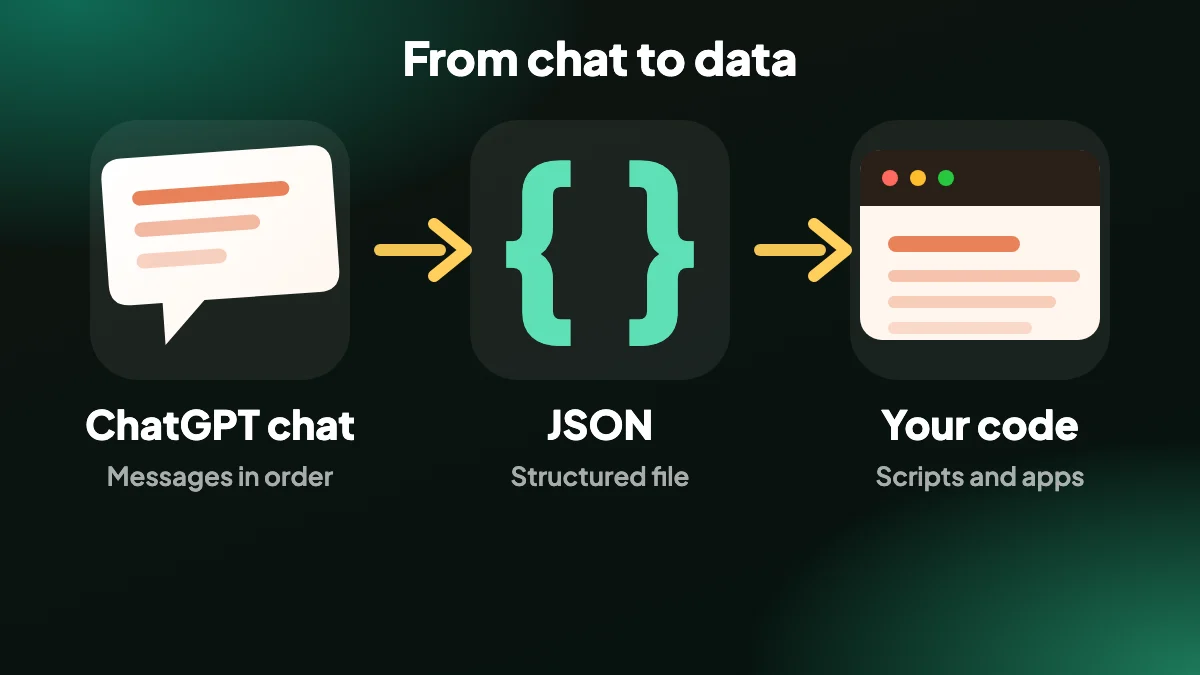
If you want to search your chats, analyse them or move them into your own tools, a text dump is not enough. JSON keeps every message as its own record, with the details attached.
ChatGPT Exporter reads the conversation from ChatGPT's page data, so the fields you get are the real ones, not values inferred from the screen.
2. What each record includes
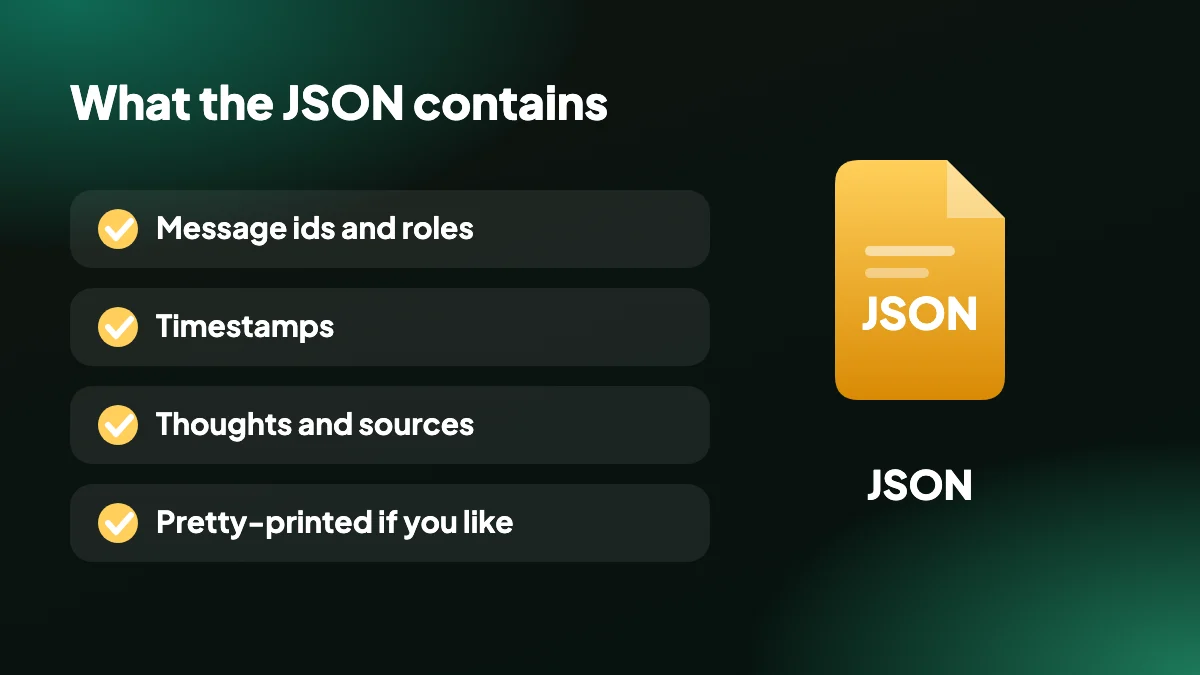
- Ids and roles: Every message carries an id and a role, so you can tell your prompts from ChatGPT's answers.
- Timestamps: Message times are included for sorting and analysis.
- Thoughts: ChatGPT's reasoning ("thought process") is captured when you include it.
- Sources: Web-search citations are stored as sources attached to the answer.
- Pretty-print option: Choose readable, indented JSON or a compact file.
- Selected messages only: Export a subset of messages when you do not need the whole chat.
3. How to export ChatGPT to JSON, step by step
Open the conversation
Go to the chat on chatgpt.com.
Choose JSON
Pick JSON from the side panel or the EXPORT menu. Adjust pretty-print in settings if you like.
Use the file
Load the .json file into your script, notebook or tool of choice.
4. Why export a ChatGPT conversation as JSON?
JSON keeps every message as its own record with the details attached, so a script can count, filter, search and transform it. That suits developers building tools on top of their chats, researchers studying prompts and anyone who wants their history in a format a program can read.
A text dump loses the structure that matters: who said what, when, and with which sources. With JSON the roles, ids and timestamps travel with each message.
5. What the ChatGPT to JSON export contains
The extension reads the conversation from ChatGPT's own page data, so the fields are the real ones, not values guessed from the screen. Each message carries its id and role, timestamps are included, web-search citations are stored as sources and ChatGPT's thought process can be added when you want it. For picking a format by use case, see which format to export.
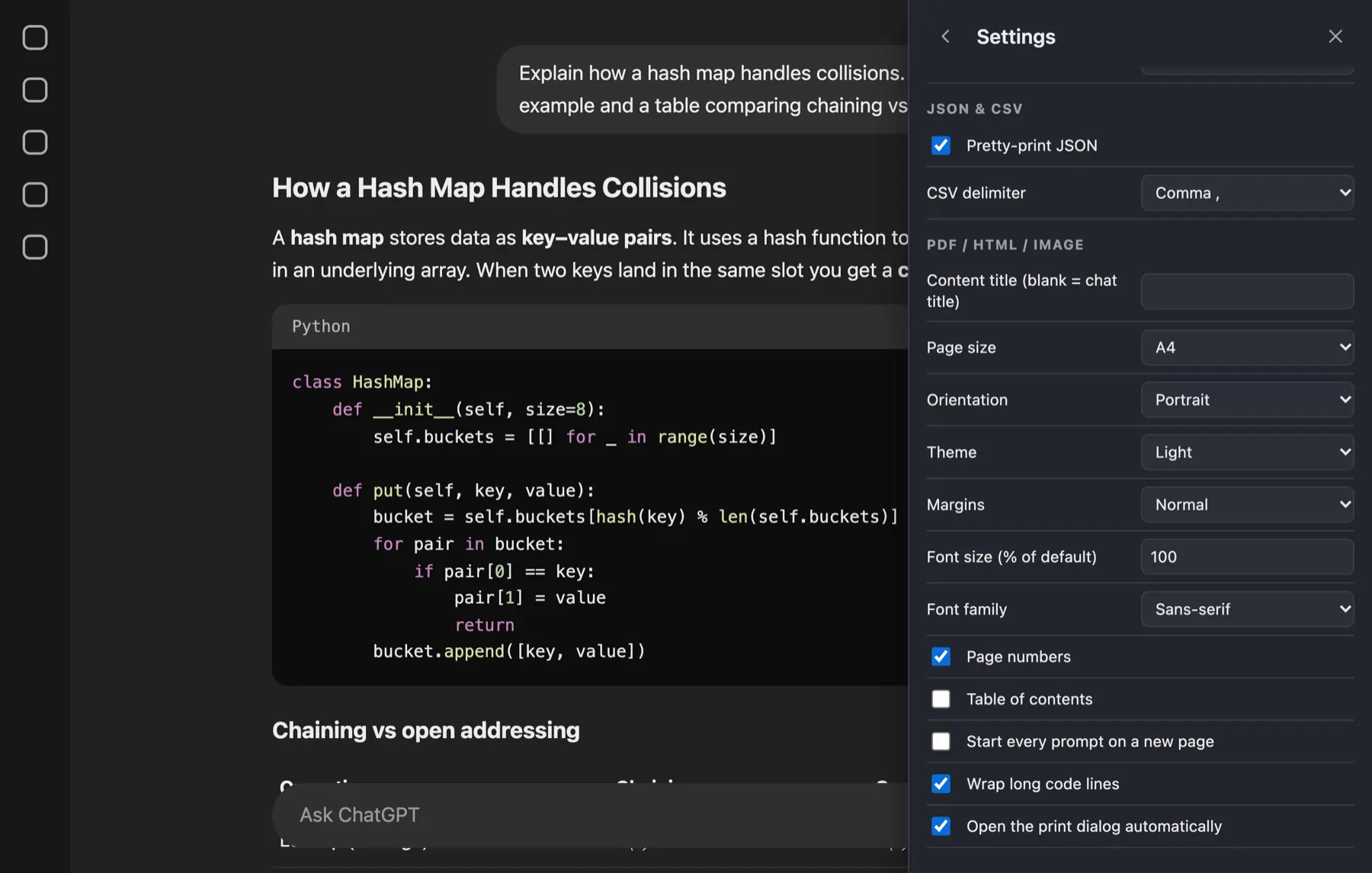
Choose pretty-printed JSON for reading and diffing, or a compact file to save space. Export the whole chat or only the messages you select, and pair it with CSV when you need the same data in a spreadsheet.
6. Using the JSON file
Load the file into a notebook, a script or a database import. Typical uses include prompt libraries, evaluation sets, searchable archives and migrating conversations into your own tools. For many chats at once, bulk export packs them into one ZIP.
Everything runs locally in your browser as a free Chrome extension, with no upload. Note that this exports the conversation you have open, which is different from the account-wide archive in ChatGPT's own data export.
7. Reading the file for the first time
Open the file in a code editor and the shape becomes clear quickly. There is a record for the conversation, and inside it a list of messages in order. Each message has an id, a role that tells you whether it came from you or from ChatGPT, a timestamp and the content. Where you chose to include them, reasoning and sources sit alongside the answer they belong to.
If you turned on pretty-printing, the file is indented and easy to read by eye. If you chose compact output it is one long line, which is smaller and just as valid, and any JSON viewer or the browser's own tools will lay it out for you.
8. Three small things to try with it
You do not need to be a developer to get something out of a JSON file.
- Search a conversation. A command-line tool such as jq, or a JSON viewer in your editor, lets you pull out only the messages with a certain role or only those that contain a word.
- Load it into Python. The standard json module reads the file in a line, and pandas can turn the list of messages into a table in one more.
- Count and measure. How many prompts did a task take? How long were the answers? A few lines of code answer questions that scrolling cannot.
If code is not your thing, export the same chat to CSV and use a spreadsheet instead. You get one message per row and the same kind of analysis, without a script.
9. Building a personal archive you can search
The strongest case for JSON is a searchable archive. Export your important chats in bulk, keep them in one folder with a sensible file name, and you can index the folder with whatever search tool you like: a desktop search app, a small script, even a text search in your editor. Because every message is its own record, you can find the exact answer rather than the whole chat it lived in.
It also makes a good source for a personal prompt library. Filter for the messages you wrote, pick the ones that produced something worth repeating, and keep them as a list. Plenty of people discover that a dozen prompts they wrote once and forgot are the most valuable thing in their history.
10. JSON versus the official export
The official data export also contains your conversations in a structured file, but it covers the whole account, arrives by email and cannot be limited to one chat. Exporting JSON from the page gives you the single conversation you are looking at, immediately, with only the messages you choose. Use the official export for a full backup and this one for working with specific chats.
Frequently asked questions
How do I export ChatGPT to JSON?
Open the chat on chatgpt.com and choose JSON from the EXPORT menu or the SELECT panel. A .json file downloads to your computer.
Is this the same as ChatGPT's own data export?
No. This exports the conversation you have open, or the messages you select, in a format you choose, directly from your browser. The data export guide explains how the official archive compares.
What fields are included in the JSON?
Message ids, roles and timestamps, plus thoughts and sources when you include them.
Can I choose pretty-printed or compact JSON?
Yes. Pretty-print is a setting, so you can pick readable, indented output or a compact file.
Can I copy JSON to the clipboard?
Yes. The copy menu includes JSON along with Markdown, text, CSV and rich text.
Can I export many chats at once?
Yes. Bulk export packs many conversations into one ZIP.
Can I export only some messages as JSON?
Yes. Use SELECT to tick the messages you want before exporting.
Is my conversation uploaded?
No. The file is built in your browser and saved locally.
Which tools can open a ChatGPT JSON export?
Any code editor, a browser, a JSON viewer, or a language such as Python or JavaScript. Spreadsheet tools can import it too, though CSV is simpler for that.
Should I choose pretty-printed or compact JSON?
Pretty-printed is easier to read and diff. Compact is smaller. Both contain exactly the same data.
Can I use the JSON to move chats into another AI tool?
You can use it as the source for your own scripts or imports. Each tool has its own format, so you may need a small conversion step.