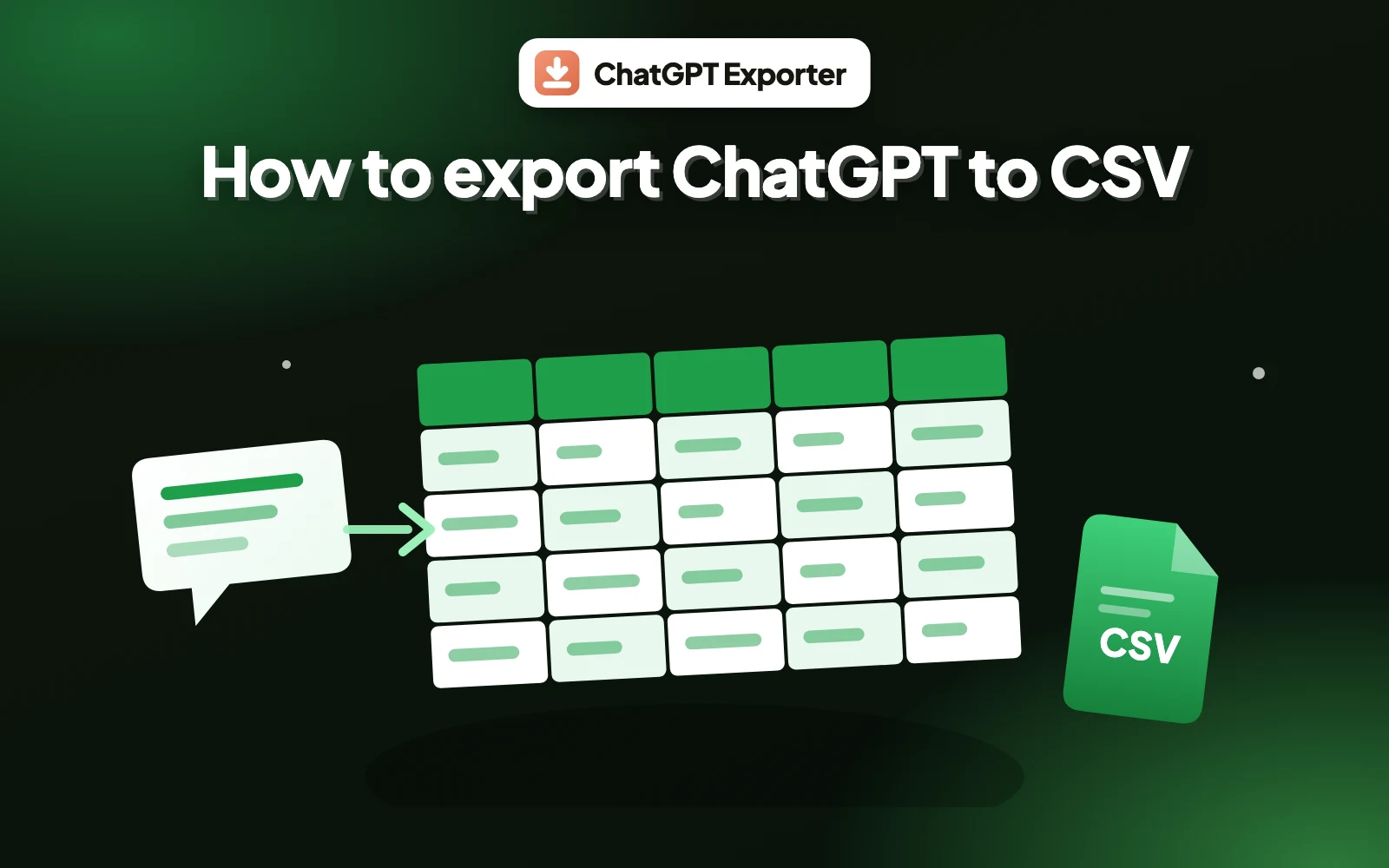
Put a ChatGPT conversation into a spreadsheet, one message per row, in a CSV that opens cleanly in Excel.
1. Spreadsheets for sorting, filtering and reviewing
A CSV turns a conversation into rows you can sort, filter and annotate. That is useful for reviewing long chats, collecting prompts and answers, or handing a conversation to someone who lives in spreadsheets.
The file is written in a way Excel reads correctly, so accented and non-Latin characters do not turn into gibberish when you double-click it.
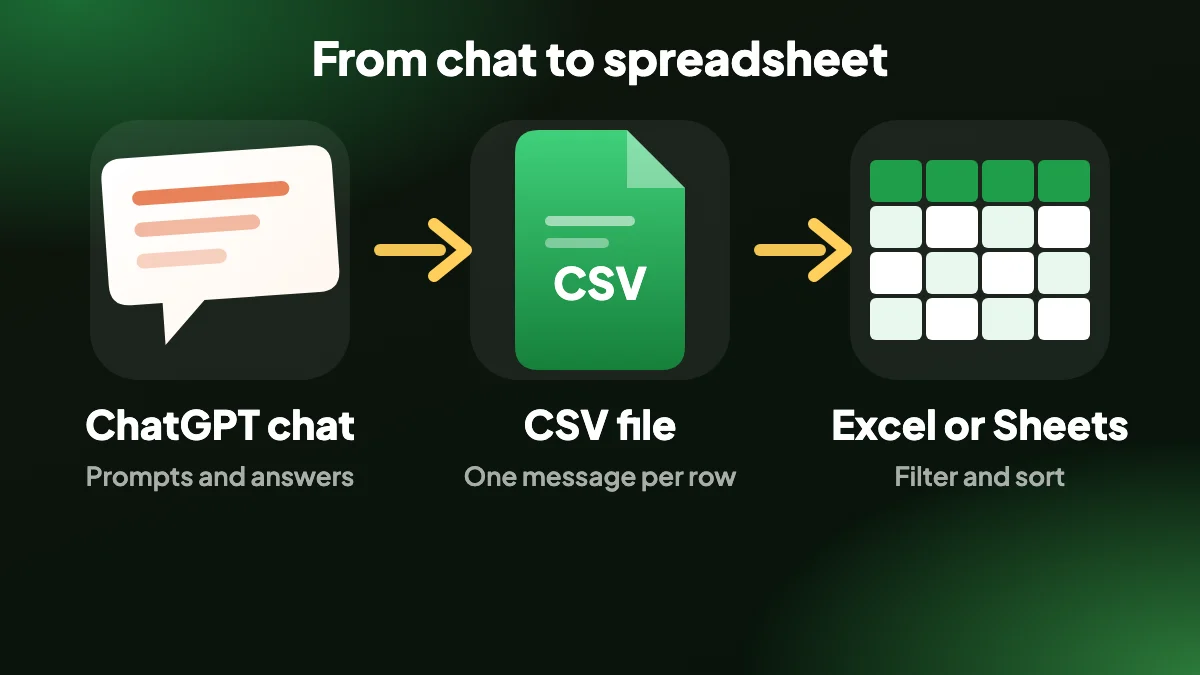
2. Built for spreadsheets
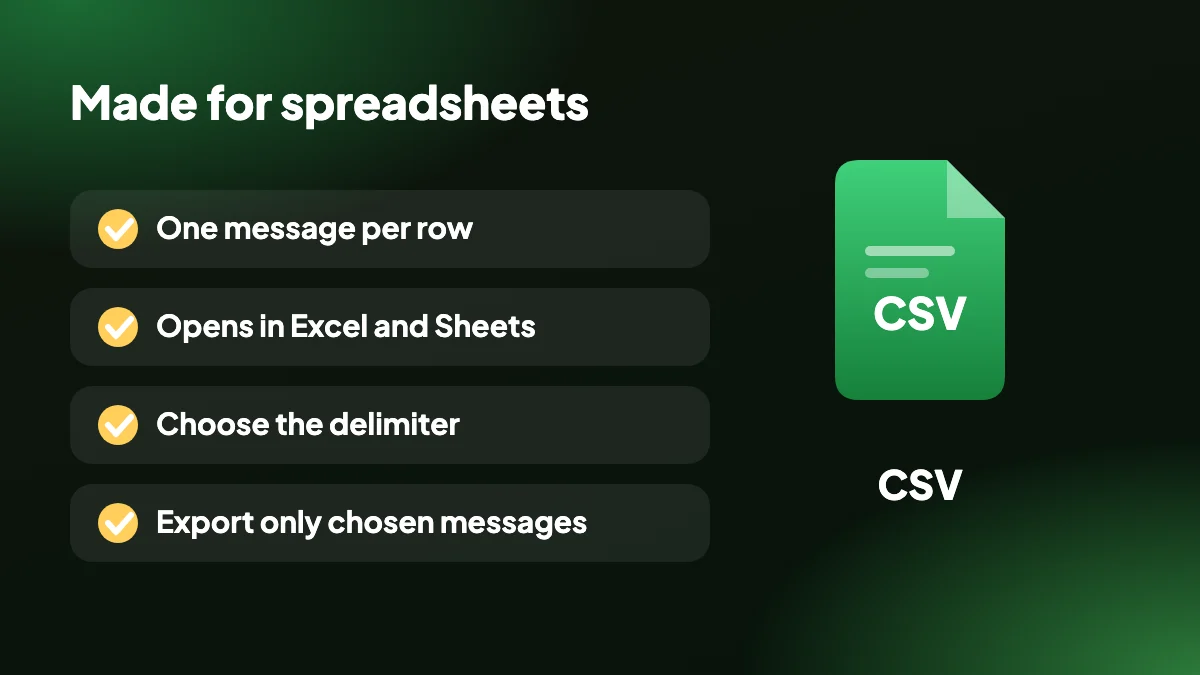
- Excel-friendly encoding: UTF-8 with a byte-order mark, so Excel shows international characters properly.
- One message per row: Each message is a row with its number, role, author, timestamp and content, plus thoughts, sources and attachments, so you can filter by role.
- Choose your delimiter: Pick the separator that matches your locale and spreadsheet settings.
- Selected messages only: Export only the part of the chat you care about.
3. How to export ChatGPT to CSV, step by step
Open the chat
Go to the conversation on chatgpt.com and optionally use SELECT.
Choose CSV
Pick CSV from the format list. Set the delimiter in settings if needed.
Open in your spreadsheet
Open the file in Excel or import it into your spreadsheet app.
4. Why export ChatGPT to CSV?
A spreadsheet turns a conversation into rows you can sort, filter and annotate. That is useful for reviewing long chats, collecting prompts and answers for a team, tagging messages or handing a conversation to someone who lives in Excel or Google Sheets.
It also makes patterns visible. Filter by role to see only your prompts, or only ChatGPT's replies, and add your own columns for notes or ratings.
5. What the ChatGPT to CSV file looks like
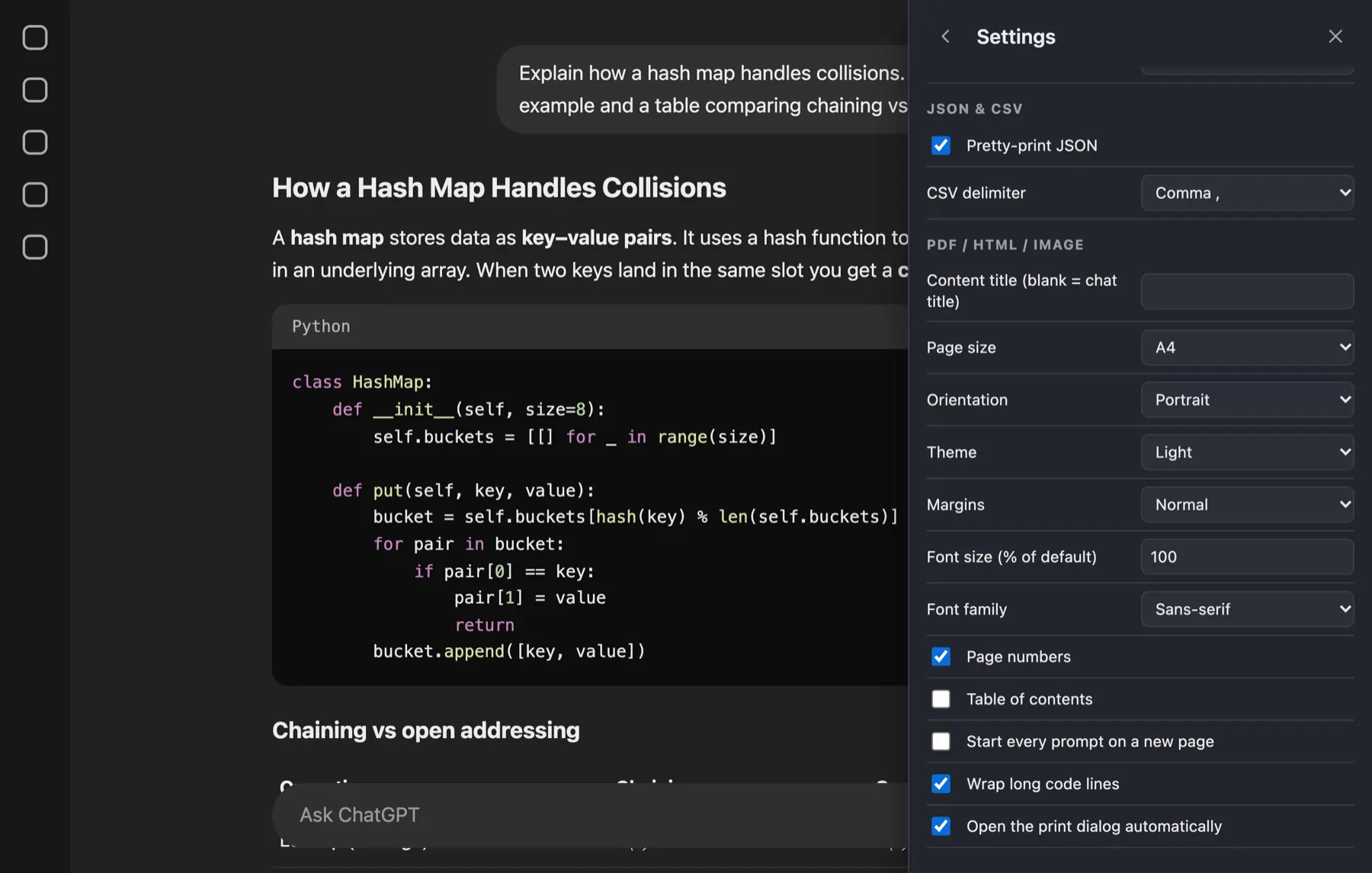
Each message is one row with its number, role, author, timestamp and content, plus columns for thoughts, sources and attachments. The file is saved as UTF-8 with a byte-order mark, so Excel detects the encoding and accented or non-Latin characters show correctly when you double-click it.
Different regions expect different separators, so the delimiter is a setting. Pick comma, semicolon or whatever your spreadsheet configuration expects and the file opens cleanly. The other options are described in the export format guide.
6. Open the CSV in Excel or Google Sheets
Double-click the file to open it in Excel, or use File, then Import in Google Sheets. To skip the file entirely, the copy feature can put CSV on your clipboard to paste into a sheet.
If you need data with ids and nested fields rather than flat rows, use ChatGPT to JSON. For reading or printing, PDF is a better choice than a spreadsheet.
7. Opening the file without garbled characters
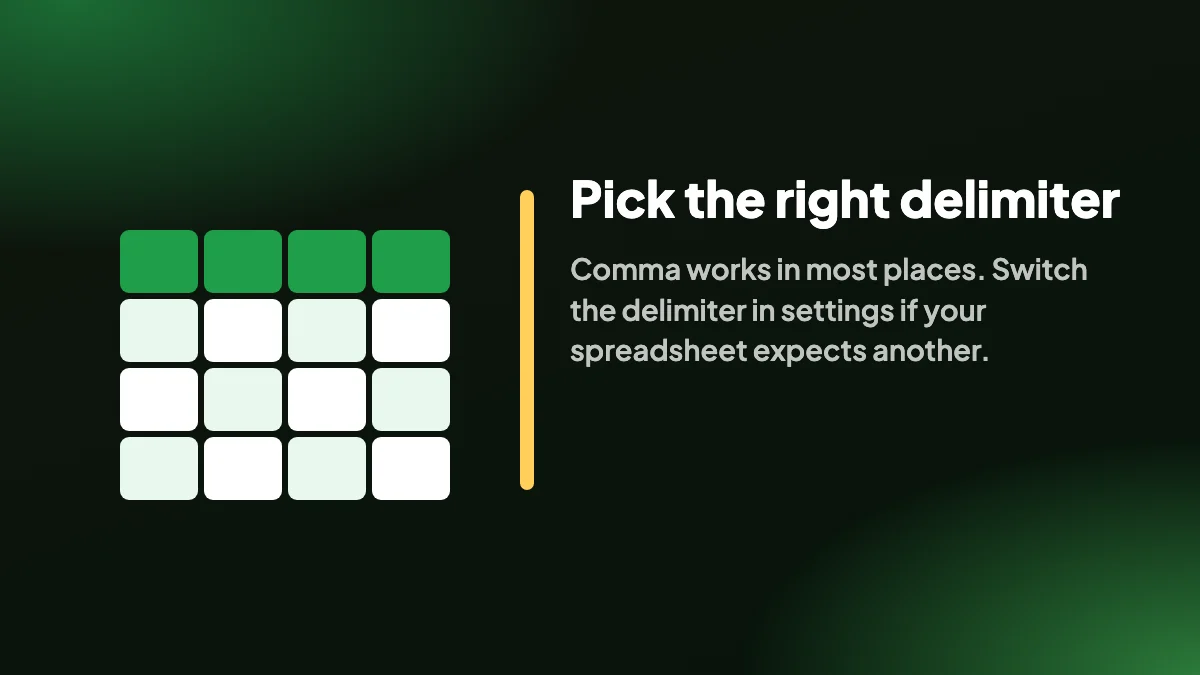
The classic CSV problem is accented letters turning into strange symbols, or everything landing in a single column. Both are about how the spreadsheet reads the file, not about the file being wrong.
This export is saved as UTF-8 with a byte-order mark, which tells Excel how to read the characters, so a double-click normally works. If everything lands in one column, your spreadsheet expects a different separator. Many European locales use a semicolon, and the extension lets you set the delimiter to match.
In Excel
Open a blank workbook, choose Data, then From Text/CSV, pick the file and check that the preview looks right before you load it.
In Google Sheets
Choose File, then Import, upload the file and select "Replace spreadsheet" or "Insert new sheet". Sheets detects the separator automatically.
In Numbers
Open the file directly. If the columns look wrong, reimport it and choose the separator by hand.
8. What to do with a conversation in rows
A spreadsheet is good at questions that a document is bad at. Once every message is a row, you can do things like these:
- Filter to your own prompts and read them as a list. It is a surprisingly good way to see what you have really been asking.
- Sort by time to see where a long session sped up or stalled.
- Count and compare. How long are the answers? How many follow-up questions did it take? A column of character counts answers both.
- Add your own columns. Tag each answer as useful or not, assign it to a colleague, or mark which ones went into a final document.
- Pull out quotes. A filter on the assistant role and a search for a keyword is faster than scrolling a chat.
9. A simple review workflow
Teams that use ChatGPT for research or drafting often want a light-touch review of what was asked and what came back. A CSV makes that easy without any special tooling.
Export the conversation, open it in a shared sheet, hide the columns you do not need, and add two of your own: one for a reviewer's comment and one for a status. Everyone works in the tool they already know, and the original conversation stays untouched in ChatGPT. If you need the exchange in a format a script can read, JSON keeps more detail, and Markdown is nicer for humans.
10. Limits to know about
Long answers sit inside a single cell, so row heights can get large. Turn on text wrapping and set a fixed row height if the sheet starts to feel unwieldy. Formatting such as bold text and tables is flattened, because a cell holds text rather than layout. When the look of the answer matters, a PDF or Word file is a better choice.
Frequently asked questions
How do I export ChatGPT to CSV?
Open the chat on chatgpt.com and choose CSV from the EXPORT menu or the SELECT panel. A .csv file downloads to your computer. If you have not installed it yet, ChatGPT Exporter takes a few seconds to add.
Why is the CSV Excel-friendly?
It is saved as UTF-8 with a byte-order mark, which lets Excel detect the encoding and show every character correctly.
Can I change the delimiter?
Yes. The delimiter is a setting, so you can match your regional spreadsheet configuration.
What columns does the CSV have?
Each row is one message with its number, role, author, timestamp and content, plus thoughts, sources and attachments.
Can I copy CSV without saving a file?
Yes. CSV is one of the clipboard formats in the copy menu.
Does it work with Google Sheets?
Yes. Import the file with File, then Import in Google Sheets, or paste the copied CSV.
Can I export only some messages?
Yes. Use SELECT to tick the messages you want before exporting.
Is my chat uploaded anywhere?
No. The CSV is created in your browser and saved locally.
Why does my CSV show everything in one column?
The spreadsheet is expecting a different separator. Change the delimiter in the extension's settings to match your regional setup, often a semicolon, then export again.
Can I analyse a ChatGPT conversation in Excel?
Yes. With one message per row you can filter by role, sort by time and add your own columns for notes or ratings.
Does the CSV keep my formatting?
No. Cells hold text, so bold, tables and code styling are flattened. Use PDF or Word when presentation matters.