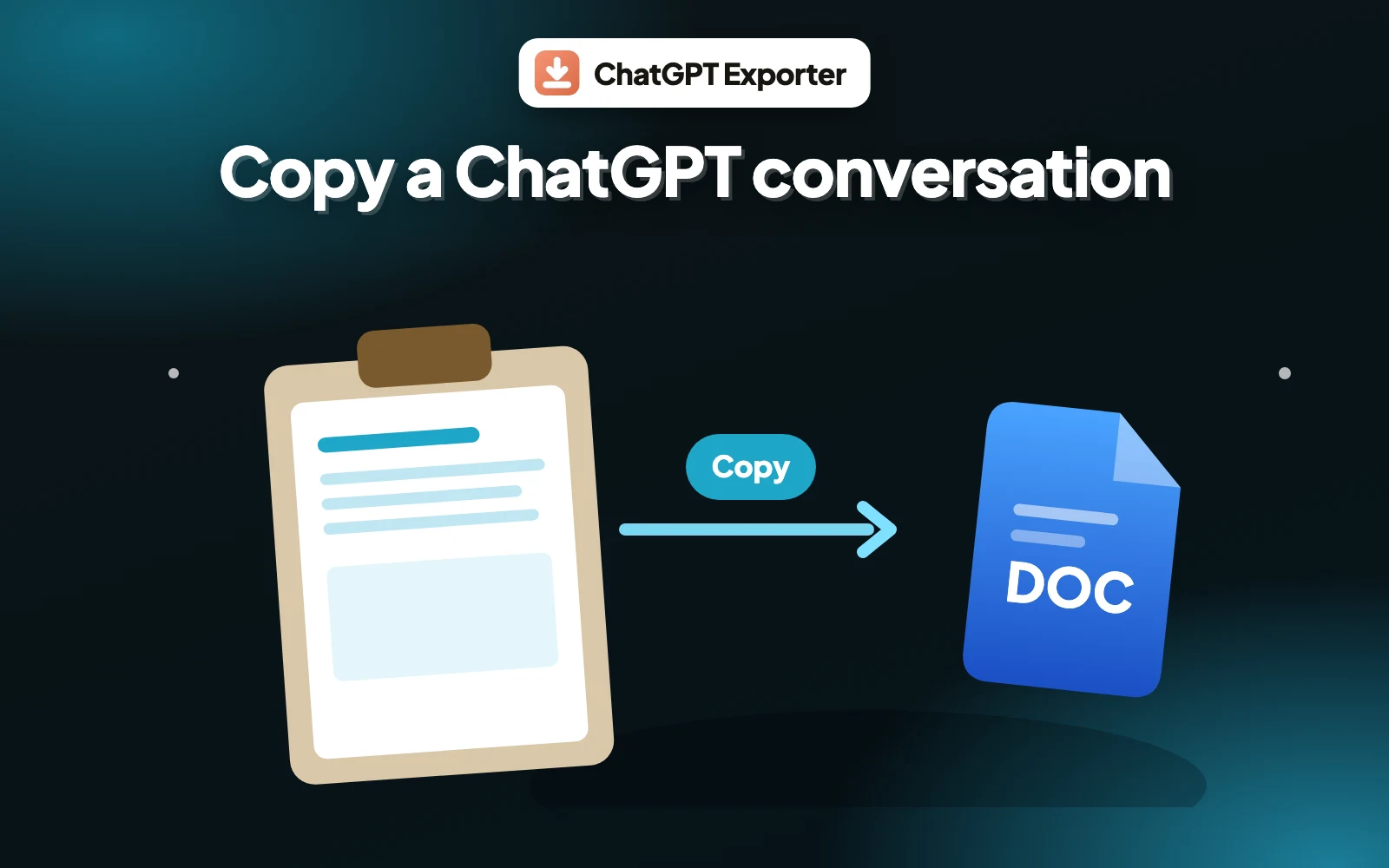
Skip the file. Copy a conversation to your clipboard as Markdown, text, JSON, CSV or rich text, and paste it where you need it.
1. Copy a ChatGPT conversation and paste it straight into your document
Selecting text in ChatGPT and pasting it elsewhere often drags unwanted formatting along, or loses the good formatting. The copy button puts the right version on your clipboard.
Choose rich text to paste into Google Docs, Word or Notion with headings, lists and tables intact. Choose Markdown, text, JSON or CSV when you are pasting into an editor or a script.
2. Five clipboard formats
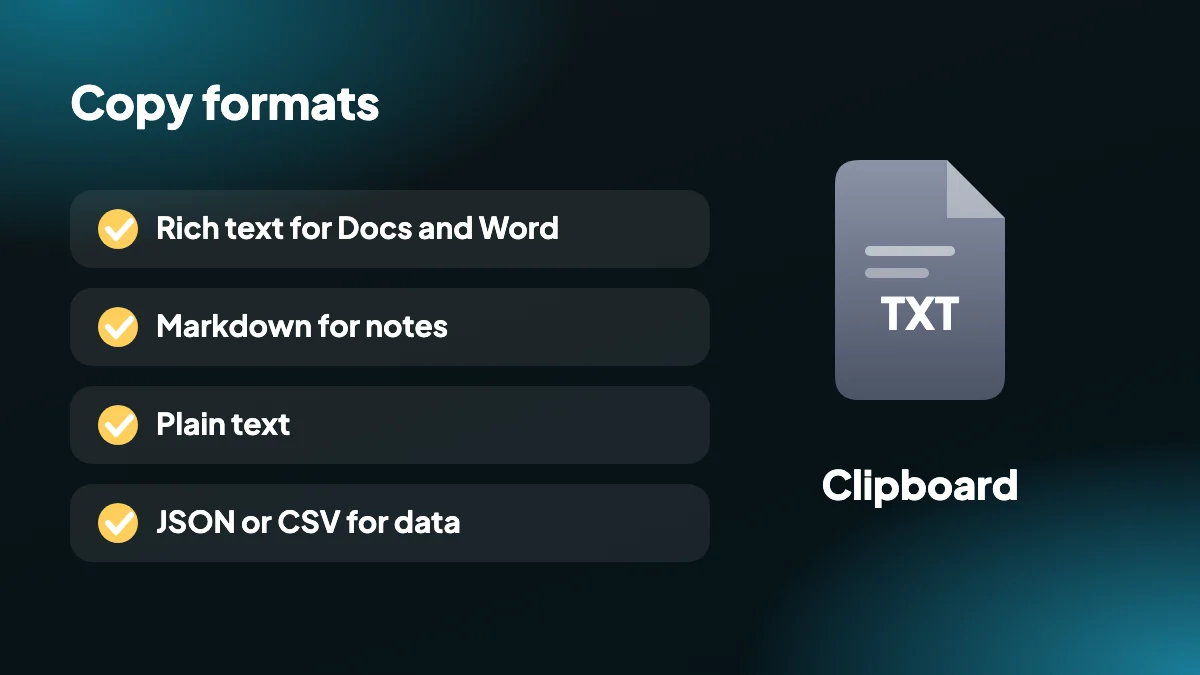
- Rich text: Paste into Google Docs, Word or Notion with formatting preserved.
- Markdown: Clean Markdown for editors and notes.
- Plain text: Just the words, no formatting.
- JSON: Structured messages for scripts and tools.
- CSV: Rows ready to paste into a spreadsheet.
- Only what you select: Copy the whole chat or a handful of messages chosen in the SELECT panel.
3. How to copy a ChatGPT conversation in one click, step by step
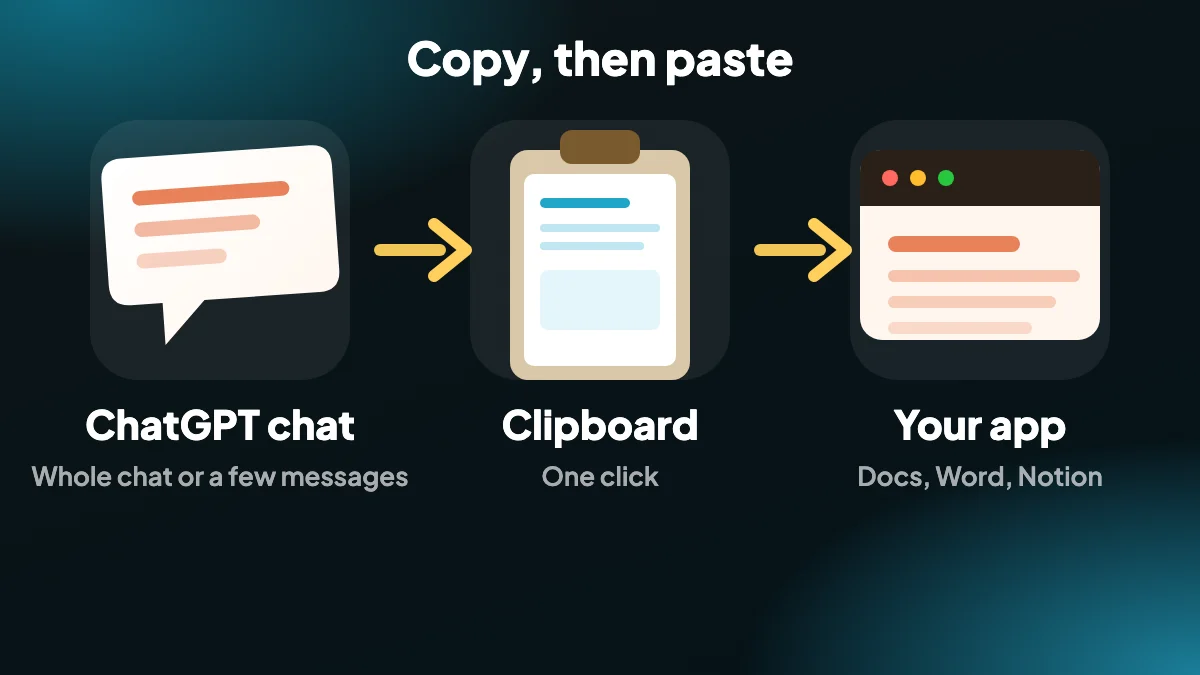
Select the messages
Open SELECT and tick the messages you want, or keep the default of All.
Click the copy icon
Choose Markdown, text, JSON, CSV or rich text.
Paste
Paste into Google Docs, Word, Notion or any other app.
4. Copy ChatGPT conversation text without the mess
Highlighting a long chat by hand is fiddly, and the paste usually brings unwanted fonts or loses the formatting you wanted. The copy button builds the text from the conversation itself and puts the right version on your clipboard, so what you paste looks the way it should.
The ChatGPT page only has a copy button for one reply at a time. With ChatGPT Exporter you can copy a whole conversation, or just a handful of messages chosen in the SELECT panel.
5. Which clipboard format should I choose?
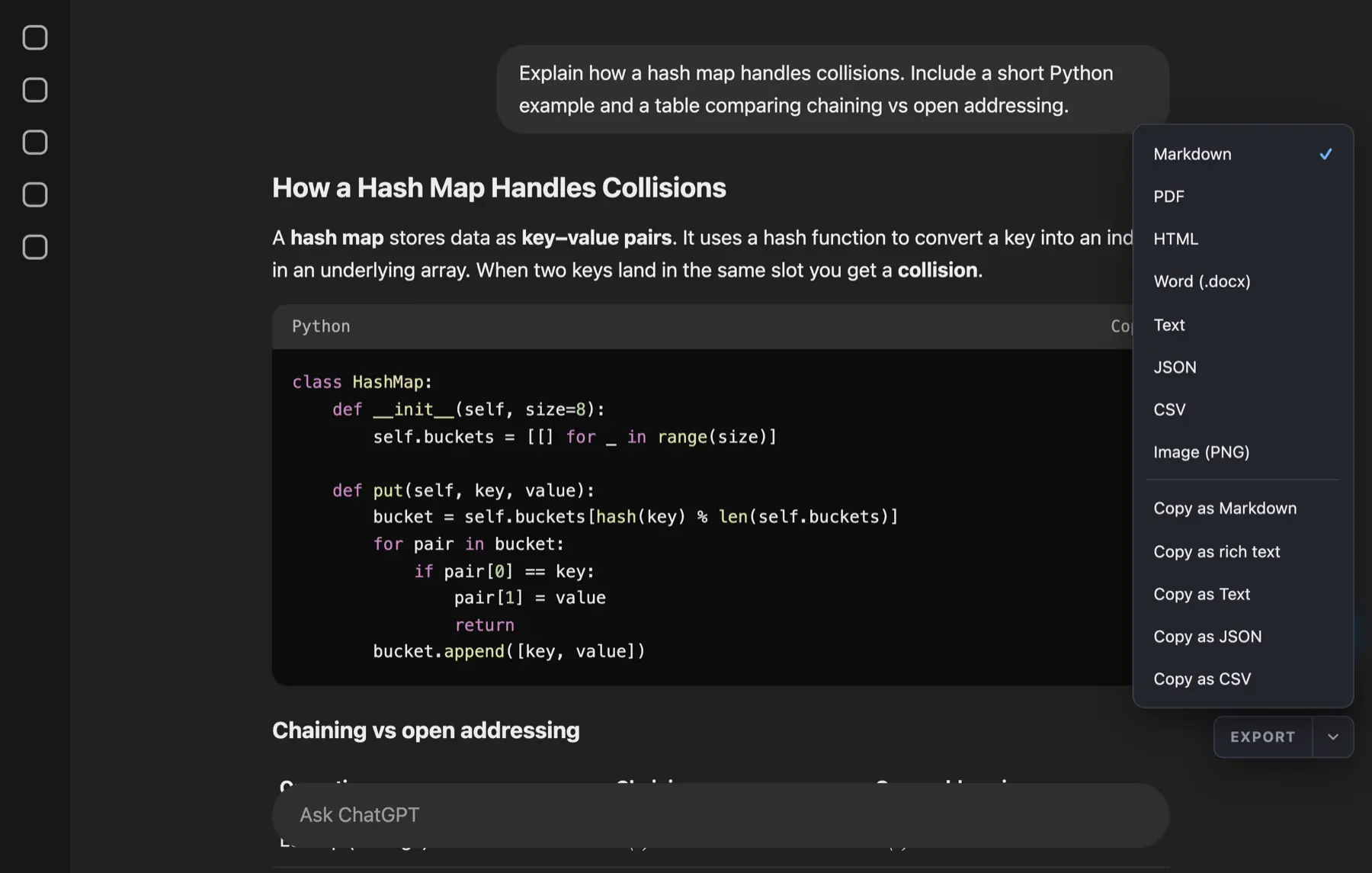
Choose rich text for Google Docs, Word and Notion, where headings, lists and tables paste with their formatting. Choose Markdown for editors and note apps, plain text when you only need the words, JSON for scripts and CSV for spreadsheets.
Use the Questions or Answers presets to copy only your prompts or only ChatGPT's replies. For a step-by-step guide to the paste itself, see how to copy and paste from ChatGPT to Word and Google Docs.
6. Copy or export: when to use which
Copying is the fastest route when the text is going straight into another app. Exporting makes more sense when you want a file to keep or send, such as a PDF, a Word document or a Markdown file. Not sure which file type to choose? See which format to export.
Copying happens entirely on your computer. The text goes from the page to your clipboard and nowhere else, which is why the extension asks for the clipboardWrite permission and nothing more for this feature.
7. Pick the clipboard format by where you are pasting
This is the quick reference we wish we had when we started. Match the destination to the format and most paste problems disappear.
| Pasting into | Copy as | Why |
|---|---|---|
| Google Docs or Word | Rich text | Headings, lists and tables come across ready to style |
| Notion | Rich text or Markdown | Notion converts either into native blocks |
| Obsidian or another notes app | Markdown | Plain text with the formatting written as symbols |
| A code editor or README | Markdown | Fenced code blocks keep their language |
| Excel or Google Sheets | CSV | One message per row |
| A script or a database | JSON | Roles, ids and timestamps stay attached |
| An email or a text field that rejects formatting | Plain text | Just the words |
8. Copy only what you need
Most of the time you do not want the whole conversation. Open SELECT and the presets do the heavy lifting: All, Questions, Answers, None and Invert. Answers drops your own prompts so you can paste a clean reply. Questions does the opposite, which is handy for collecting the prompts you used. For anything in between, tick messages one by one or Shift+click to choose a range.
It sounds minor, but it changes how you use the tool. Instead of copying everything and deleting what you did not need, you decide up front, and the clipboard contains the right thing the first time.
9. Copy, export or share?
Copying is for moving text from one place to another right now. If you want something to keep, export a file instead. If you want someone else to read the original, ChatGPT's own Share link points to a page online but is not a file you can keep. The overview of every method lays these out together.
Copying also has a natural limit: it holds one thing at a time. The next time you copy, the previous contents are gone. For anything you will want again tomorrow, save a file.
10. When a paste still looks wrong
If you picked the right format and the result is still off, the cause is usually the destination app rather than the copy. Word and Google Docs apply their own styles on top of whatever arrives, so fonts and spacing may not match your document. The fixes for that, including pasting without formatting and clearing styles after the fact, are in our guide to pasting from ChatGPT into Word and Google Docs.
Privacy is not a worry here. Copying happens between the page and your clipboard on your own computer, and nothing is sent anywhere. That is also why the extension asks for the clipboard permission and why it only uses it when you click copy.
Frequently asked questions
How do I copy a whole ChatGPT conversation?
Open the SELECT panel, keep All selected, click the copy icon and choose a format. Then paste it into your document.
Which format should I pick for Google Docs?
Rich text. It pastes with headings, lists and tables intact.
Can I copy only my questions or only the answers?
Yes. Use the Questions or Answers preset in the SELECT panel, then copy.
Can I copy ChatGPT to Notion?
Yes. Copy as rich text or Markdown and paste into Notion. The guide to copying ChatGPT into Word, Google Docs and Notion has the paste steps.
Does copying send my chat anywhere?
No. The text goes from the page to your clipboard on your computer. That is why the extension asks for the clipboardWrite permission.
Can I copy as JSON or CSV?
Yes. The copy menu includes JSON and CSV along with Markdown, text and rich text.
Is copying limited on the Free plan?
The Free plan has a monthly quota for trial usage. Paid plans give you unlimited conversions.
Does it work on the ChatGPT mobile app?
No. The extension is for desktop Chrome. On mobile, use the copy button under an individual ChatGPT reply.
Can I copy an entire ChatGPT conversation at once?
Yes. Leave SELECT on All and click the copy icon, then pick a format. The full chat goes to your clipboard.
What is the difference between copying and exporting?
Copying puts text on your clipboard for an immediate paste. Exporting saves a file you can keep, send or open later.
Which clipboard format should I use for Notion?
Either rich text or Markdown. Notion turns both into native blocks, and Markdown is the cleaner of the two for code.