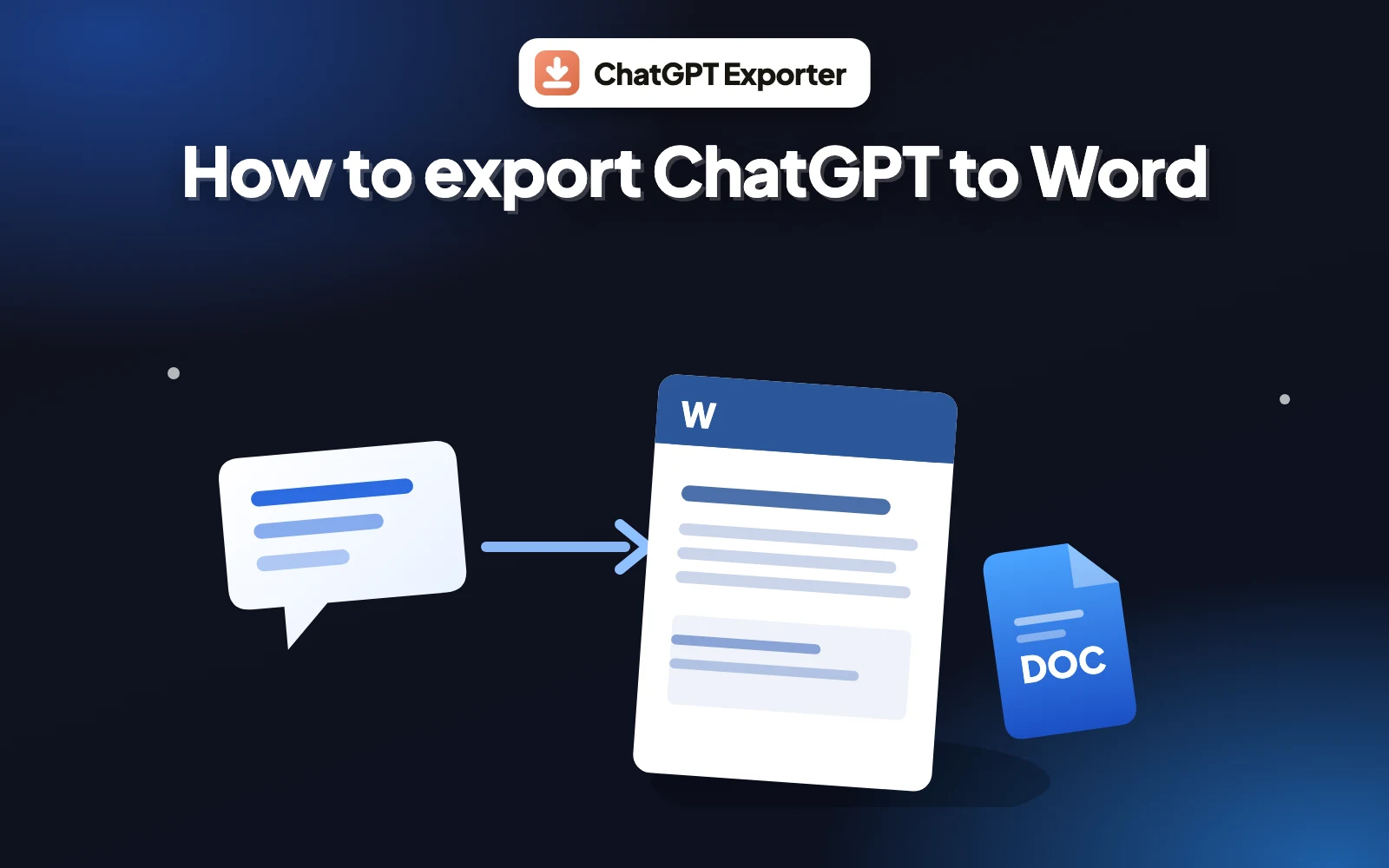
Download a ChatGPT conversation as an editable .docx file you can open in Word, tidy up and share.
1. ChatGPT to Word as an editable document, not a pasted blob
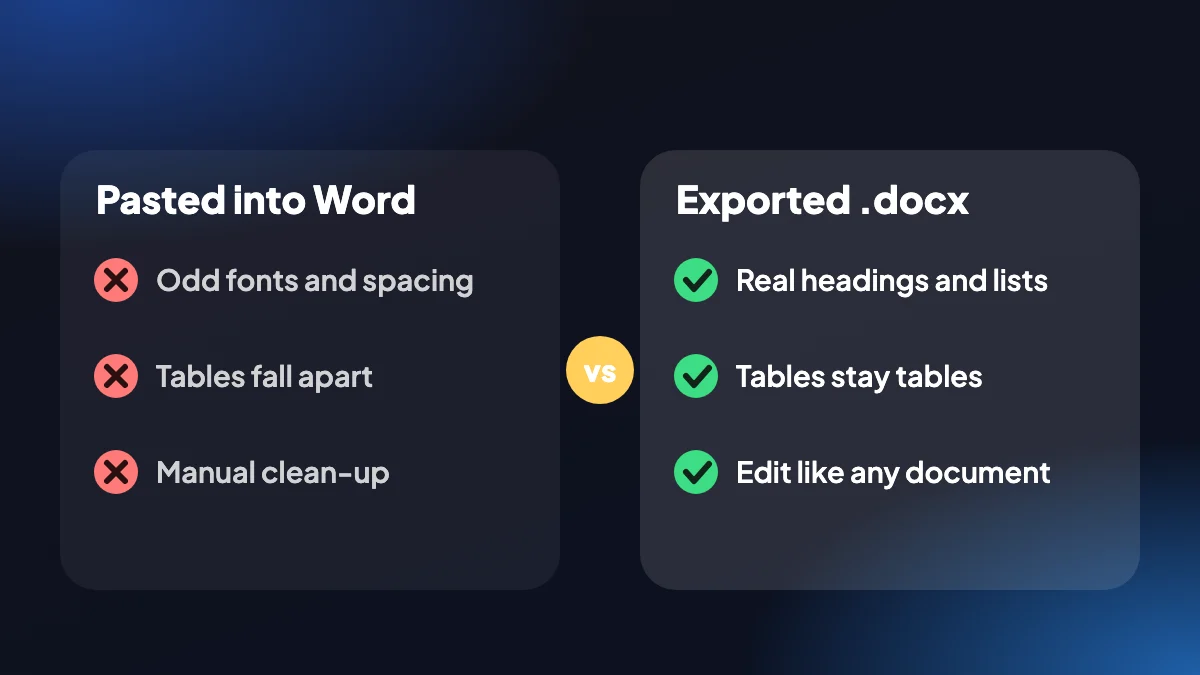
Pasting from ChatGPT into Word drags along odd fonts and spacing. Exporting to .docx gives you a document built for editing, so you can rewrite sections, add your own comments and send it on.
The file is created on your computer, in your browser. Nothing is uploaded to a converter, which matters when the chat contains work you would rather keep private.
2. What the .docx contains
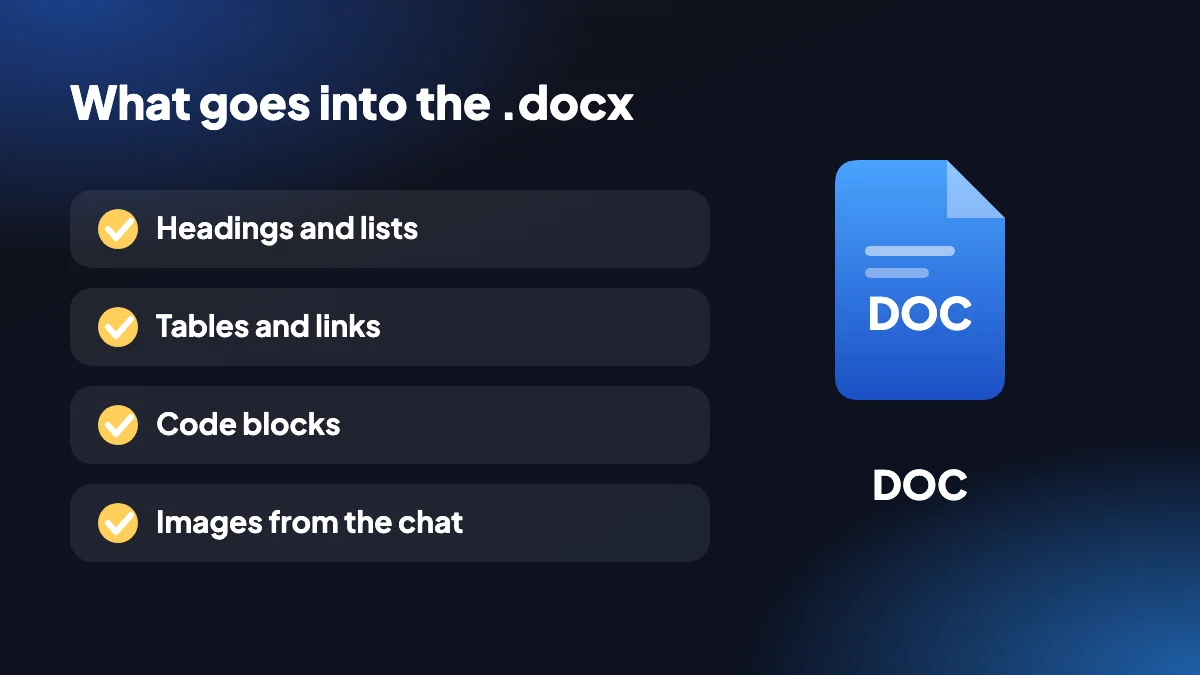
- Real document structure: Headings, lists, tables, code, links, images and quotes come through as Word content.
- Page numbers: Page numbers are added so longer conversations read like a proper document.
- Choose your messages: Export the whole chat or only the prompts and answers you select.
- Works with other tools: Open the file in Word and anything else that reads .docx.
3. How to export ChatGPT to Word, step by step
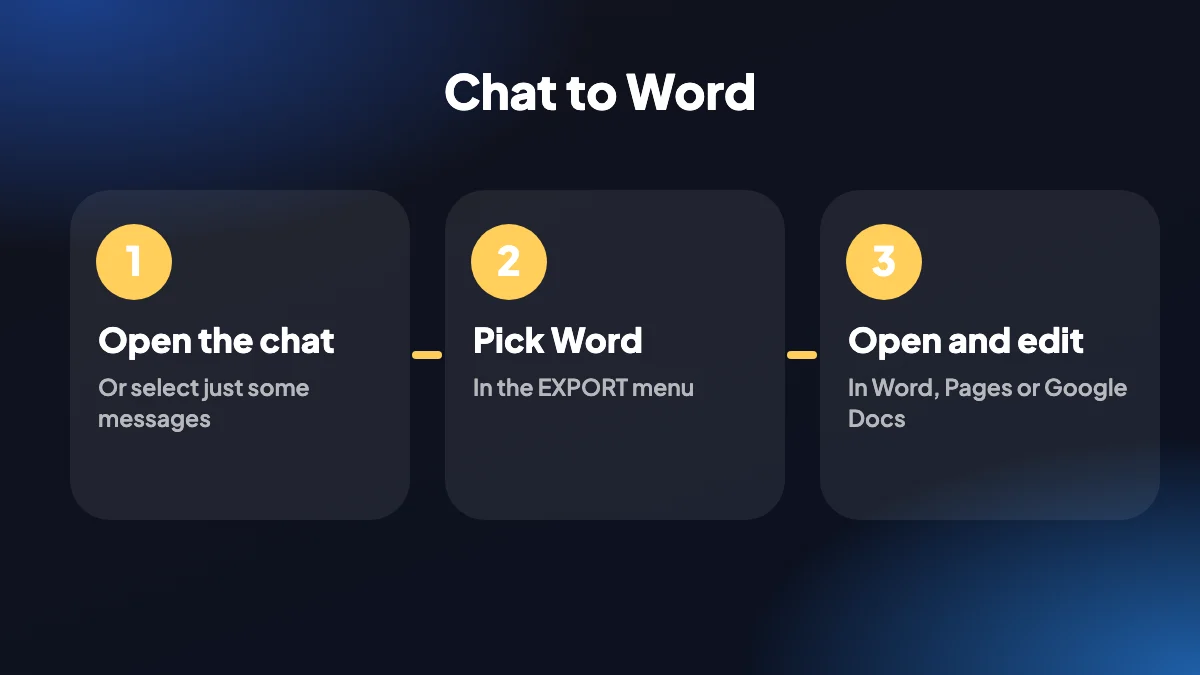
Open the chat
Go to the conversation on chatgpt.com. Use SELECT to choose messages if you only need some.
Pick Word (.docx)
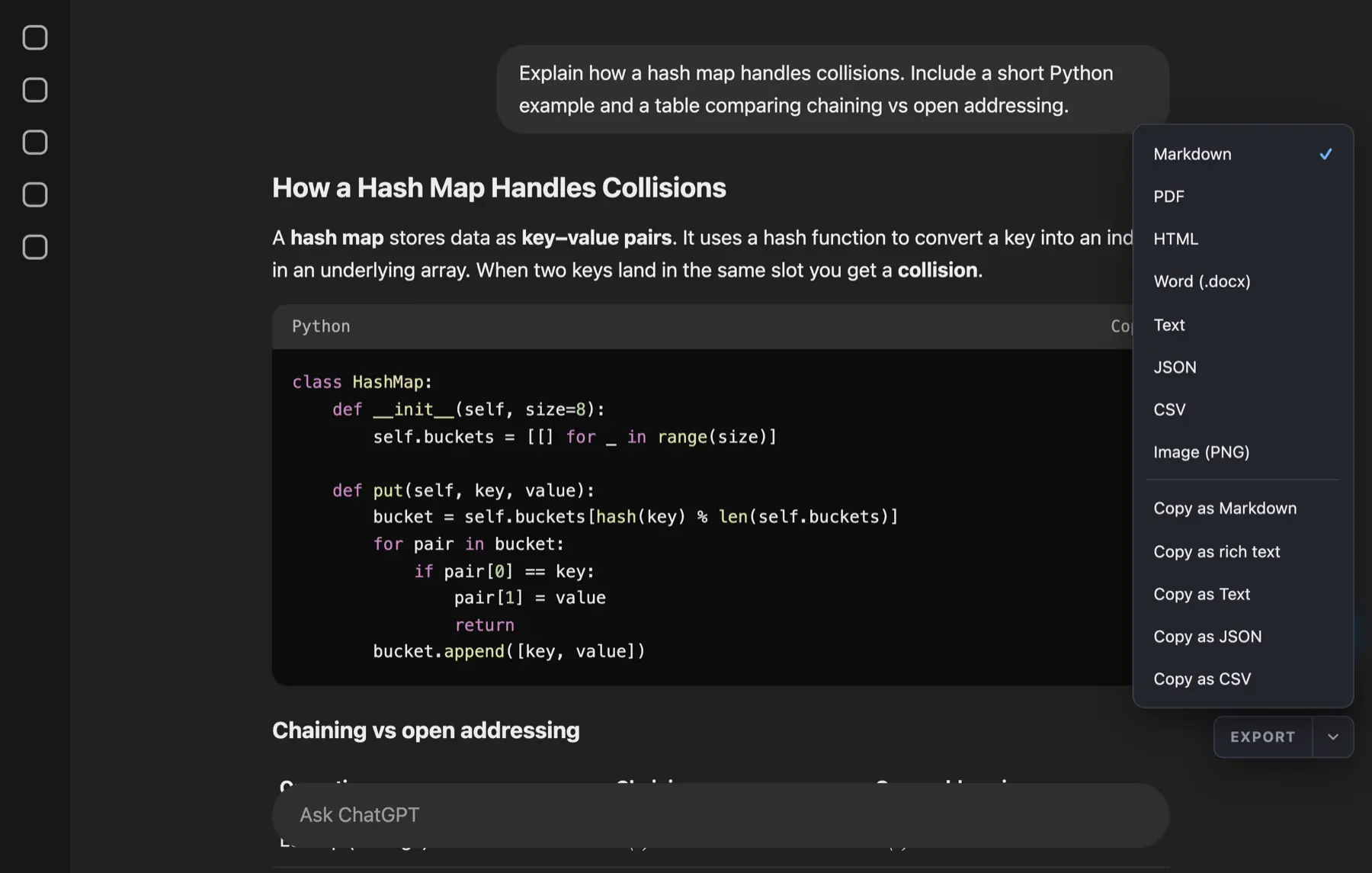
Choose Word from the format list in the side panel or the EXPORT menu.
Open and edit
Open the downloaded file in Word and edit it like any other document.
4. A note about maths
In a .docx file, equations are stored as LaTeX text (for example $x^2$), not as native Word equations. If you need typeset maths, the PDF export renders it with KaTeX.
5. Why move ChatGPT answers into Word?
Word is where drafts, reports, proposals and study notes already live. A ChatGPT answer is only useful once it sits inside that document, where you can rewrite it, add comments, track changes and send it to someone who has never used ChatGPT.
A .docx file is also a copy you control. Chats are tied to your account and your chat history, while a Word document can be filed, backed up and shared however you like.
6. Export a ChatGPT conversation to Word without copy and paste
Copying message by message is slow, and each paste drags in odd fonts and spacing. The extension builds the document from the conversation itself, so headings, numbered lists, tables, code blocks, links and images arrive as real Word content, with page numbers added for longer chats. Not sure Word is the right format? The export format comparison explains the trade-offs.
Want a clean draft without your own prompts? Click SELECT, choose the Answers preset and export only ChatGPT's replies. Prefer pasting? The copy feature puts rich text on your clipboard for Word or Google Docs.
7. A ChatGPT to Word Chrome extension that stays private
ChatGPT Exporter creates the file inside your browser. Nothing is uploaded to an online converter, which matters when a chat contains client work, source code or private notes. The Free plan includes 5 full exports and 7 single exports a month in every format, and the extension is a desktop Chrome add-on.
To work in Google Docs, upload the .docx to Google Drive and open it with Docs. If you need a fixed layout instead of an editable file, use the ChatGPT to PDF export, or see the Chrome extension overview.
8. Getting the document ready to send
A .docx straight from an export is a good first draft, but it is still a ChatGPT conversation. A few minutes of tidying turns it into something you would be happy to put your name on.
Delete what the reader does not need
Your own prompts, pleasantries and false starts rarely belong in a finished document. Better still, choose Answers in SELECT before you export so they are never there.
Apply your own styles
Select the headings and set them to your template's Heading 1 and Heading 2. The structure is already there, so it takes seconds.
Check numbers, names and links
ChatGPT can state a wrong figure with confidence. Verify anything a reader might act on before it goes out.
Add your own context
A two-line summary at the top and the date it was written make an AI-assisted note far more useful to the person reading it.
9. Using the file in Google Docs and Pages
The same .docx works outside Word. In Google Docs, upload it to Google Drive and open it with Docs, or use File, then Open, then Upload. Pages opens it directly on a Mac. Complex formatting such as tables with merged cells can shift a little between apps, so give the result a quick scroll before you share it.
If you only need a paragraph or two, skip the file and use the paste route instead. Our guide to copying from ChatGPT into Word and Google Docs covers the clipboard methods and how to clean a bad paste.
10. Word, PDF or Markdown?
| If you need to | Choose |
|---|---|
| Edit, comment or use tracked changes | Word |
| Send something that cannot be changed by accident | |
| Keep equations looking like equations | |
| Put it in a notes app or a code repository | Markdown |
| Reuse the text in a spreadsheet | CSV |
Not sure? The format comparison walks through the trade-offs of all eight.
11. Where Word exports are most useful
- Meeting prep and briefs. Ask ChatGPT for a background summary, export it and add your own notes.
- Drafting reports and proposals. Use the answers as scaffolding, then rewrite in your own voice.
- Study guides. Export an explanation, add your own questions in the margin and print it.
- Collaborative editing. Send the .docx and let a colleague mark it up with comments.
- Templates. Keep a well-formed export as the starting point for similar documents.
Frequently asked questions
How do I export ChatGPT to Word?
Open the chat on chatgpt.com, click the arrow beside EXPORT and choose Word, or pick Word in the SELECT panel. A .docx file downloads to your computer. New to the extension? Start with how to export a ChatGPT conversation.
Is there a free ChatGPT to Word converter?
Yes. ChatGPT Exporter has a Free plan with 5 full exports and 7 single exports a month, including Word. Paid plans remove the monthly limit.
Can I paste into Word or Google Docs without a file?
Yes. Copy the selection as rich text and paste it directly into Word or Google Docs. Our guide to copying and pasting from ChatGPT walks through it.
Can I open the .docx in Google Docs?
Yes. Upload the file to Google Drive and open it with Google Docs, or open it in any other app that reads .docx.
Will equations be editable in Word?
Equations are kept as LaTeX text rather than native Word equations. Use PDF if you want them typeset.
Does the document keep code blocks and tables?
Yes. Headings, lists, tables, code, links, images and quotes come through as Word content.
Can I export only part of a conversation to Word?
Yes. Use SELECT to tick the messages you want, or the Answers preset to keep only ChatGPT's replies.
Is the document sent to a server for conversion?
No. The .docx is built locally in your browser, and nothing is sent to our servers.
Does the Word export keep tables and code blocks?
Yes. Tables, lists, code, links, images and quotes come through as Word content you can edit.
Can I export only ChatGPT's answers to Word?
Yes. Open SELECT, choose the Answers preset and export. Your prompts are left out.
Will the Word file open on a Mac?
Yes. A .docx opens in Word for Mac, Pages and Google Docs.